
One of the most important tunings to me after upgrading to P3Dv4 (actually any update or upgrade) is to ensure the continuity of the newly reinstalled or copied aircraft to be run as they did in the previous version consistently . 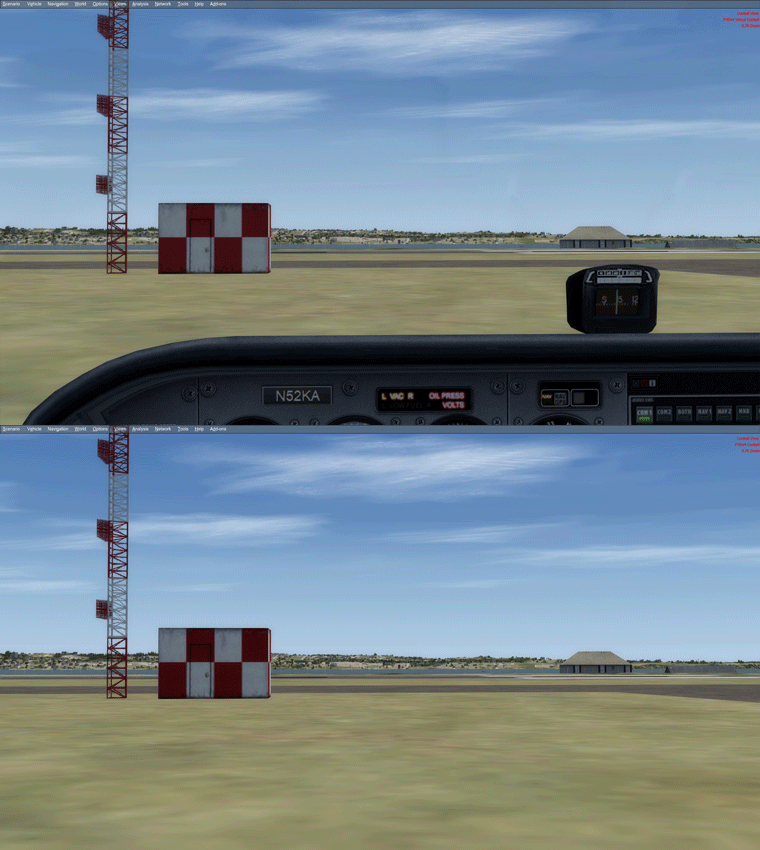
Followings are the steps:
STEP 1.)
Copy corresponding “Aircraft.cfg” files from
- “P:\Prepar3Dv3\SimObjects\Airplanes” to
- “P:\Prepar3Dv4\SimObjects\Airplanes“
STEP 2.)
Copy corresponding aircraft flying records (“state.cfg“) from “SimObjects” in
- “C:\Users\<username>\AppData\Roaming\Lockheed Martin\Prepar3D v3” to
- “C:\Users\<username>\AppData\Roaming\Lockheed Martin\Prepar3D v4“
Since P3Dv4 involves the using of new Windows system registries, it is therefore NOT recommended to simply copy the whole “SimObjects” folder from P3Dv3 to P3Dv4, even though it is possible to do so.
Moreover, if necessary, edit the new “state.cfg” files in P3Dv4 instead, rather than copying it from the previous version.
STEP 3.)
Copy the “VehicleFavorites.xml” from
- “C:\Users\<username>\AppData\Roaming\Lockheed Martin\Prepar3D v3” to
- “C:\Users\<username>\AppData\Roaming\Lockheed Martin\Prepar3D v4“
Similarly, this xml file containing the favorite aircraft record can be easily edited, if necessary.
STEP 4.)
Open “camera.cfg” in “C:\Users\<username>\AppData\Roaming\Lockheed Martin\Prepar3D v4“, and make changes (yours should be different) accordingly as follows:
[CameraDefinition.001]
Title = Cockpit
Guid = {B1386D92-4782-4682-A137-738E25D1BAB5}
Description = This is the description of the cockpit view
Origin = Cockpit
ShowPanel = No //disable 2D panel
SnapPbhAdjust = Swivel //allow view panning via hat switch
SnapPbhReturn = False
PanPbhAdjust = Swivel
PanPbhReturn = False
Track = None
ShowAxis = FrontOnly
AllowZoom = TRUE
InitialZoom = 0.7 //same InitialZoom in aircraft.cfg used in default flight
SmoothZoomTime = 2.0
ShowWeather = Yes
XyzAdjust = TRUE
ShowLensFlare=FALSE
Category = Cockpit
PitchPanRate=40 //added to increase panning speed
HeadingPanRate=100
PanAcceleratorTime=0
InitialPbh=0, 0, 2.5 //ensure the same view position in different views
HotKeySelect=2
[CameraDefinition.002]
Title = Virtual Cockpit
Guid = {C95EAB58-9E4A-4E2A-A34C-D8D9D948F078}
Description = This is the description of the virtual cockpit view.
Origin = Virtual Cockpit
MomentumEffect = Yes
SnapPbhAdjust = Swivel
SnapPbhReturn = False
PanPbhAdjust = Swivel
PanPbhReturn = False
Track = None
ShowAxis = YES
AllowZoom = TRUE
InitialZoom = 0.7 //same InitialZoom in aircraft.cfg used in default flight
SmoothZoomTime = 2.0
ZoomPanScalar = 1.0
ShowWeather = Yes
XyzAdjust = TRUE
ShowLensFlare=FALSE
Category = Cockpit
PitchPanRate=40 //increased to 40 to speed up vertical panning
HeadingPanRate=100 //increased 100 to speed up horizontal panning
PanAcceleratorTime=0
HotKeySelect=1
In addition, since I don’t use Spot View at all, I simply add “CycleHidden=Yes” to the end of [CameraDefinition.003] which will stop the Spot view from showing.
DO NOT overwrite the new camera.cfg with the old one because they are different.
STEP 5.)
Copy the previous P3Dv3 default Scenerio files (e.g. “Bowerman.fxml” and “Bowerman.wx”) from
- “E:\Documents\Prepar3D v3 Files” to
- “E:\Documents\Prepar3D v4 Files“
Run P3Dv4 and click [Load] option in startup Scenerio, and then select the copied Scenerio as the new default one.
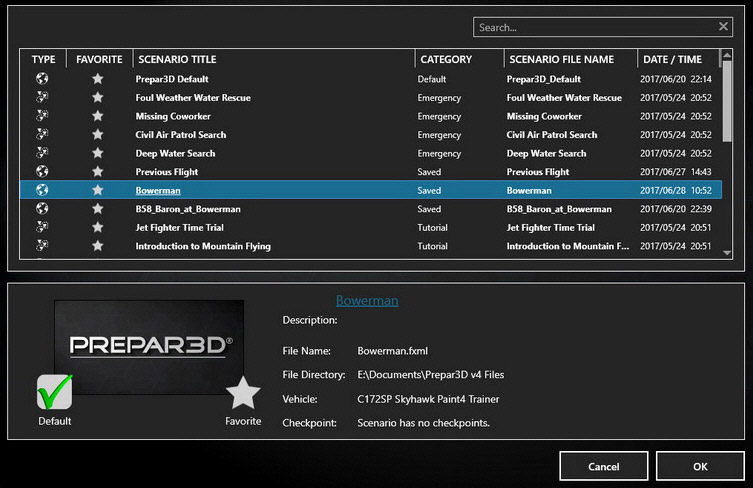 After the selection, continue to start up a flight session and make adjustments to it, if necessary.
Lastly, save the flight session as the new default Scenerio.
==========
After performing above steps, most of the settings of the Aircraft last used on P3Dv3 will be passed over to P3Dv4.
 FS Times
Hi Tom..thanks for this post…I have done the first part of your article (i.e., copy over the
airplanes)…in some instances, I have found that some of the planes will not show
a “preview” in the initial start up page that allows you to pick your plane, scenario, etc…
I have further found that if a plane won’t show a “preview, ” it usually will not work in P3D4
and will many times crash the program…have you experienced this?…is there a way to make
these planes work?….
Thanks for any help…
John Helms
LikeLike
Hi John,
You are right that not all airplanes can be copied from FSX to P3D. Regarding the “preview” thing, I do see some planes not showing correctly work fine without any issues. I don’t recall seeing them crashing the system.
Some can be fixed and some couldn’t and fixes vary from cases to cases. They are two different simulators after all.
BTW, which aircraft are you referring to having problem? I’ll check if I have them and give you suggestion.
Tom
LikeLike
Hi Tom..thanks for the offer…I have a great
number of “incompatible” aircraft, but here are a few
of my favorites:
Lancair
Beech 76 Duchess
Lear 23, 24, 25
Britton Norman Tri-Islander
Cirrus SR 22
Any help appreciated…
Thanks, John H
LikeLike
Hi John,
Unfortunately I don’t have any of the airplanes you listed. ;)
Tom
LikeLike
Thanks Tom….if you have any planes you think I might
have just reply back…
Thanks for looking..
John H
LikeLike
Noted. ;) Tom
LikeLike