
by David Marsden
Many of us are advised to turn OFF Anisotropic and Anti-aliasing especially when running with FSX. David Marsden in UK finds it the exact opposite.
I have been experimenting with my settings to see what works best for my PC. It is running FSX and the specifications are not very high.
Core i7-4770K CPU @ 3.5 GHz
16 GB Ram
Windows 7 64 bit
NVidia Geforce GTX960 video card
Three screens for the main display and one other for the instruments
I’ve noticed that if you set filtering to Anisotropic and Anti-aliasing to On in FSX it runs very badly. There is a lot on the internet saying these should be turned OFF in the Nvidia driver settings and the FSX program should be switched to ON to force them to turn on. What I found was the exact opposite. If I turn them ON in the Nvidia driver settings
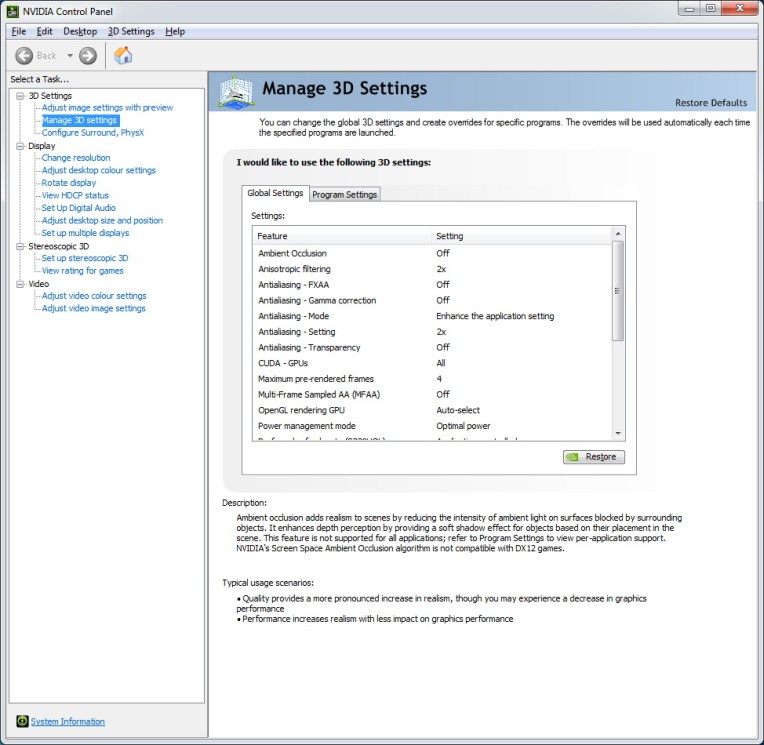
You can see I have only set filtering to 2x and Antialisaing to 2x and pre-rendered frames to 4. In FSX anisotropic filtering and antialiasing are both turned ON.
And also set them for the game as below in Program settings.
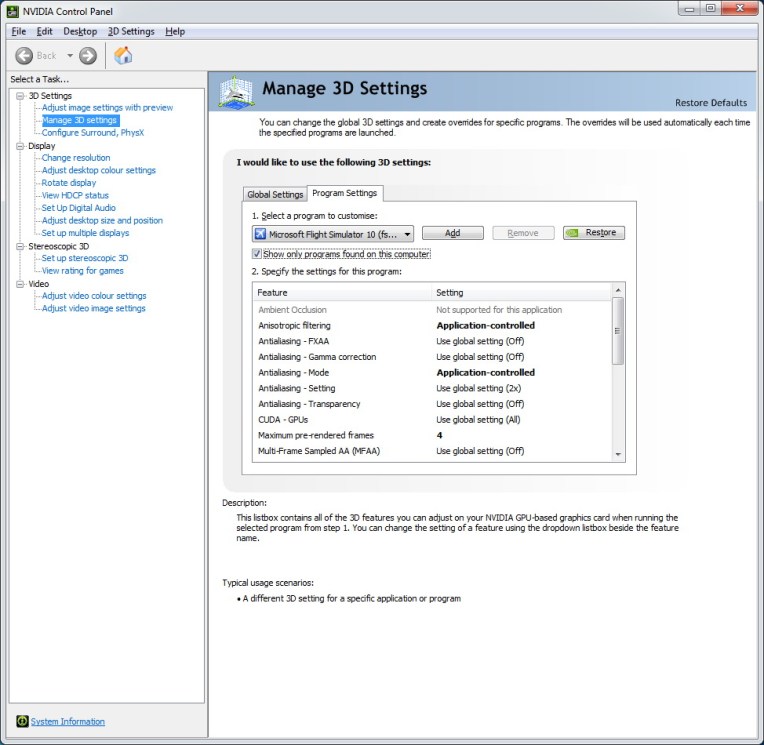
Then FSX runs completely smoothly with the highest graphics settings. There is no judder at all. I don’t know why this works on my system, but it does (and very well).
Hope this information is useful to other people with older computers like myself.
 FS Times