
Another friend, Ty, commented on my Post 905, saying that despite having a fairly powerful machine, he hadn’t had luck with Lossless Scaling 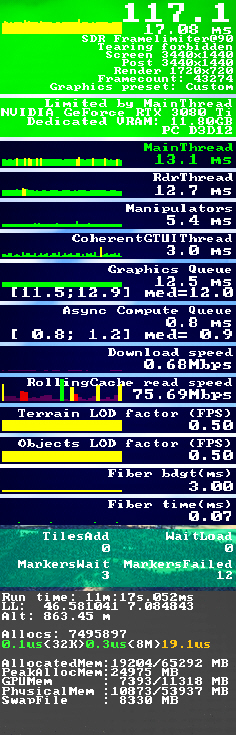 either. However, he was able to run MSFS at all-ultra settings using NVIDIA Frame Generation. He also sent me a YouTube video that he said had helped him a lot.
What a coincidence! The video actually talks about a trick that I had stumbled upon two years ago, which I already reported in my Post 836: My “Limited by Main Thread” Fix.
The key of the trick was to keep the “Limited by Main Thread” status green as much as possible by setting the “Frame Rate Limit” option to 50%.
I had been using this trick ever since, but I gradually forgot about it and, at some point, turned it off.
Reminded by Ty’s note, I immediately checked my MSFS settings, only to discover that there was no “Frame Rate Limit” anymore in the SU4 Beta.
But then I spotted the “V-Sync Interval.” I opened it and saw it offered three options: One-third Refresh Rate, Half Refresh Rate and Monitor Refresh Rate.
Looks familar, doesn’t it? I immediately changed the V-Sync Interval from “Monitor Refresh Rate” to “Half Refresh Rate.”
Yes! After the change, the “Main Thread” status on the FPS Info Panel now generally stays green most of the time, even at lower fps.
The tweak is simple, but the effect is significant (for both MSFS2020 and MSFS2024).
BTW, do note that the V-Sync Interval option is greyed out when AMD FSR 3 Frame Generation is in use.
To change the V-Sync value, first disable Frame Generation to enable the V-Sync Interval option. Then, after making the change, turn back on Frame Generation, which greys out V-Sync Interval again.
Lastly, I searched “V-Sync Interval” on the Internet and found that it is actually the same option Asobo renamed from “Frame Rate Limiter” in the past (though monitor refresh rate and frame rate sound like two different concepts).
As always, your mileage may vary.
–
 FS Times