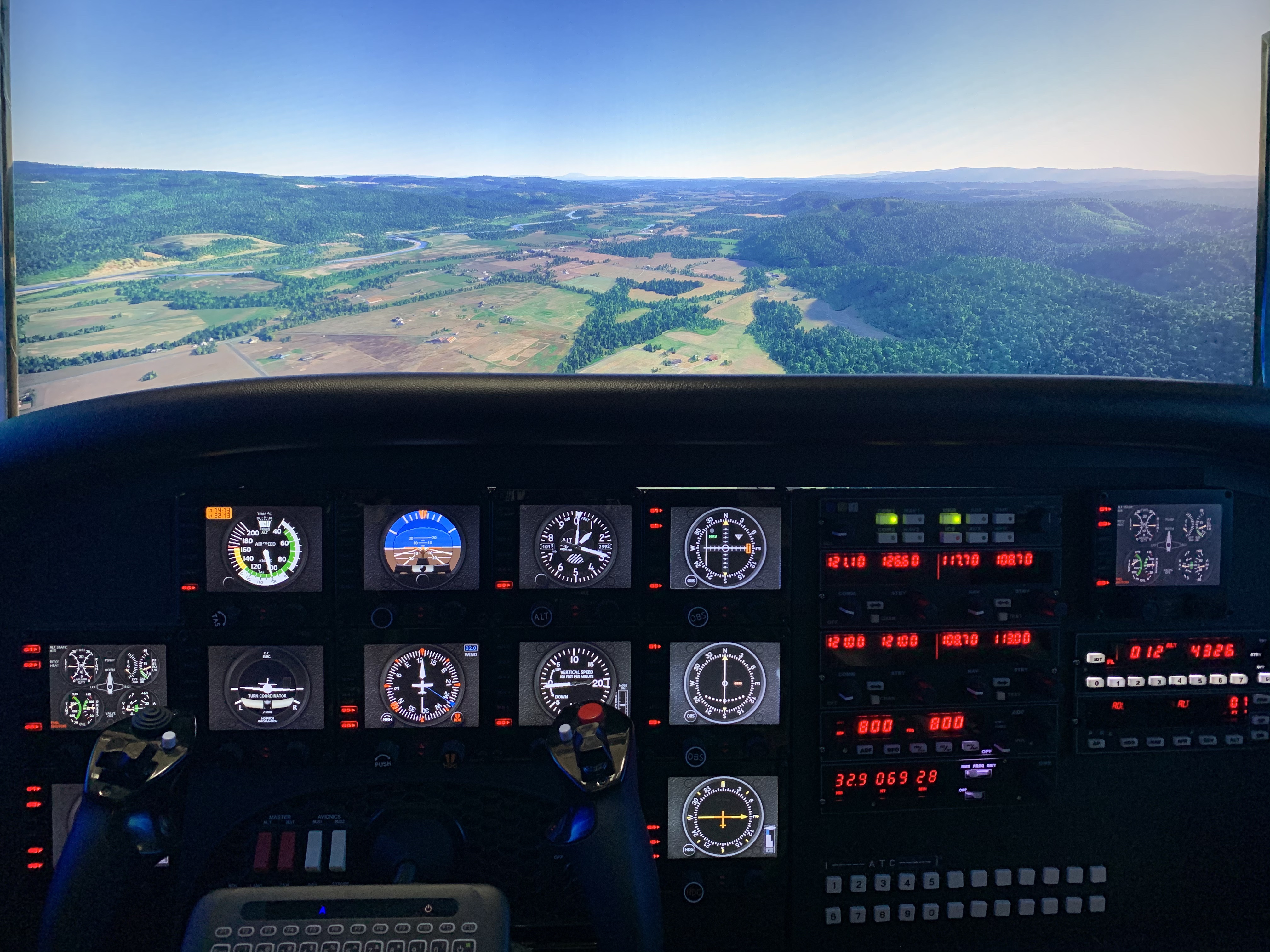
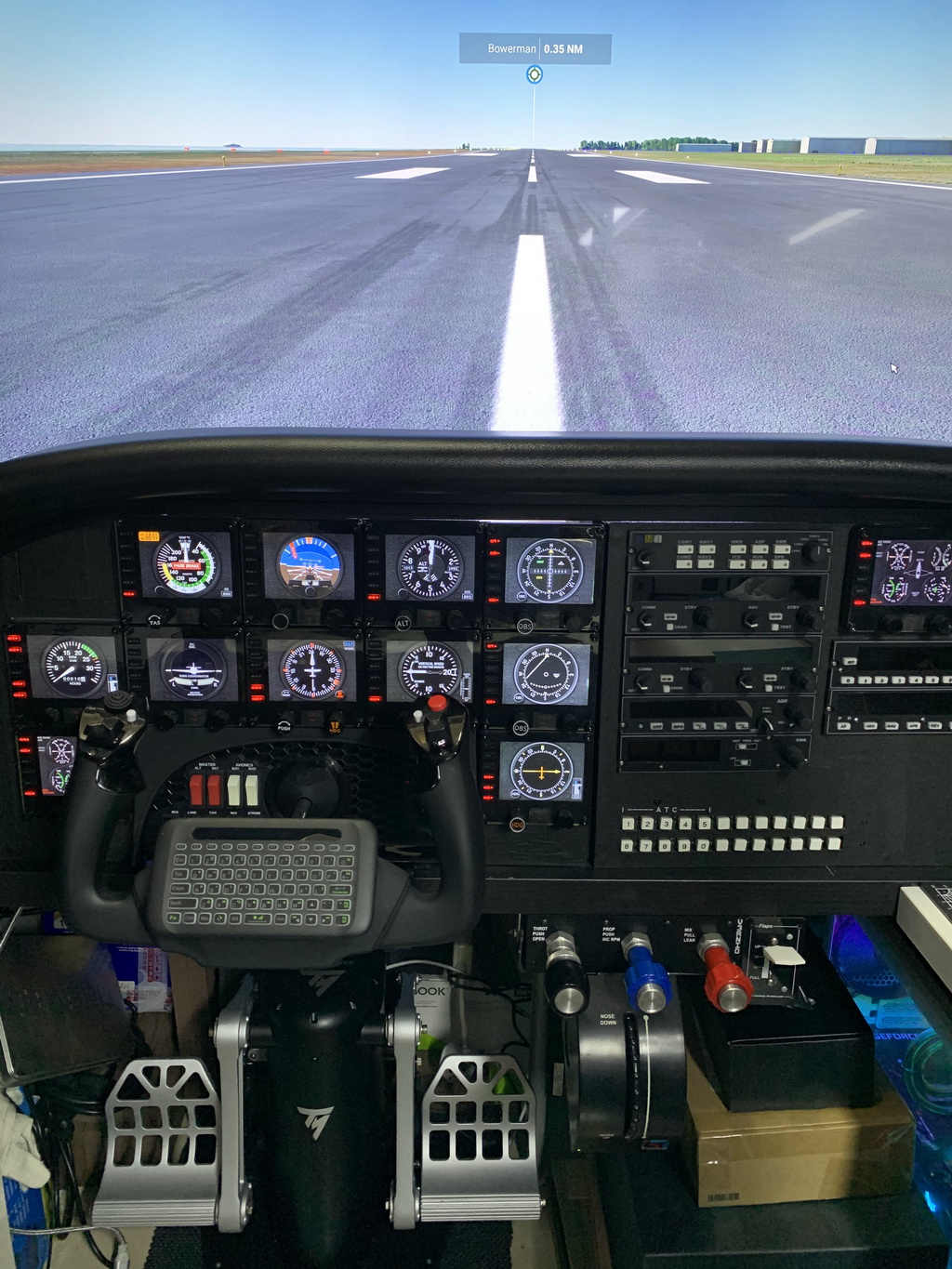
655: ASI & ATT2 for Zlin Shock Ultra

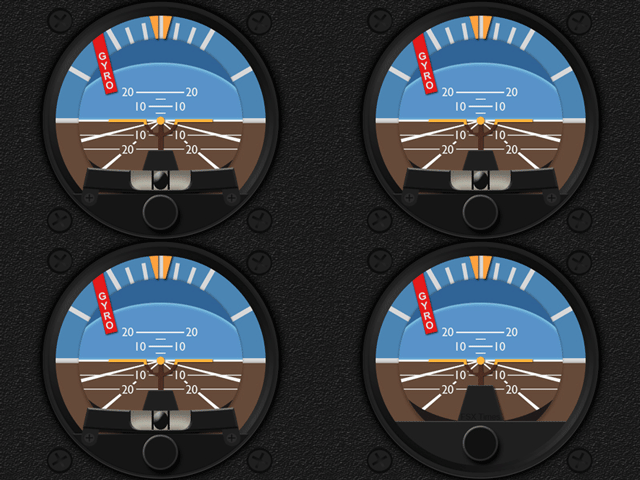
Two new gauges for Zlin Shock Ultra in MSFS 2020 has been developed.  One is the Airspeed Indicator (ASI); and the other is the current Multi-shared Attitude Indicator (ATT) integrated with a small inclinometer.
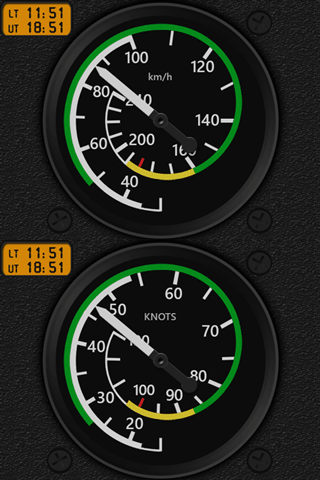
Many Airspeed Indicators in MSFS 2020, including this Zlin one, are using km/h unit — a bit odd from KNOTS and MHP that are commonly used in FSX, P3D and X-Plane.  So I am including a KNOTS version as well for users to choose from.

For the variation of the MS-Shared ATT, Continue reading
654: My Vegetations Mod Updated

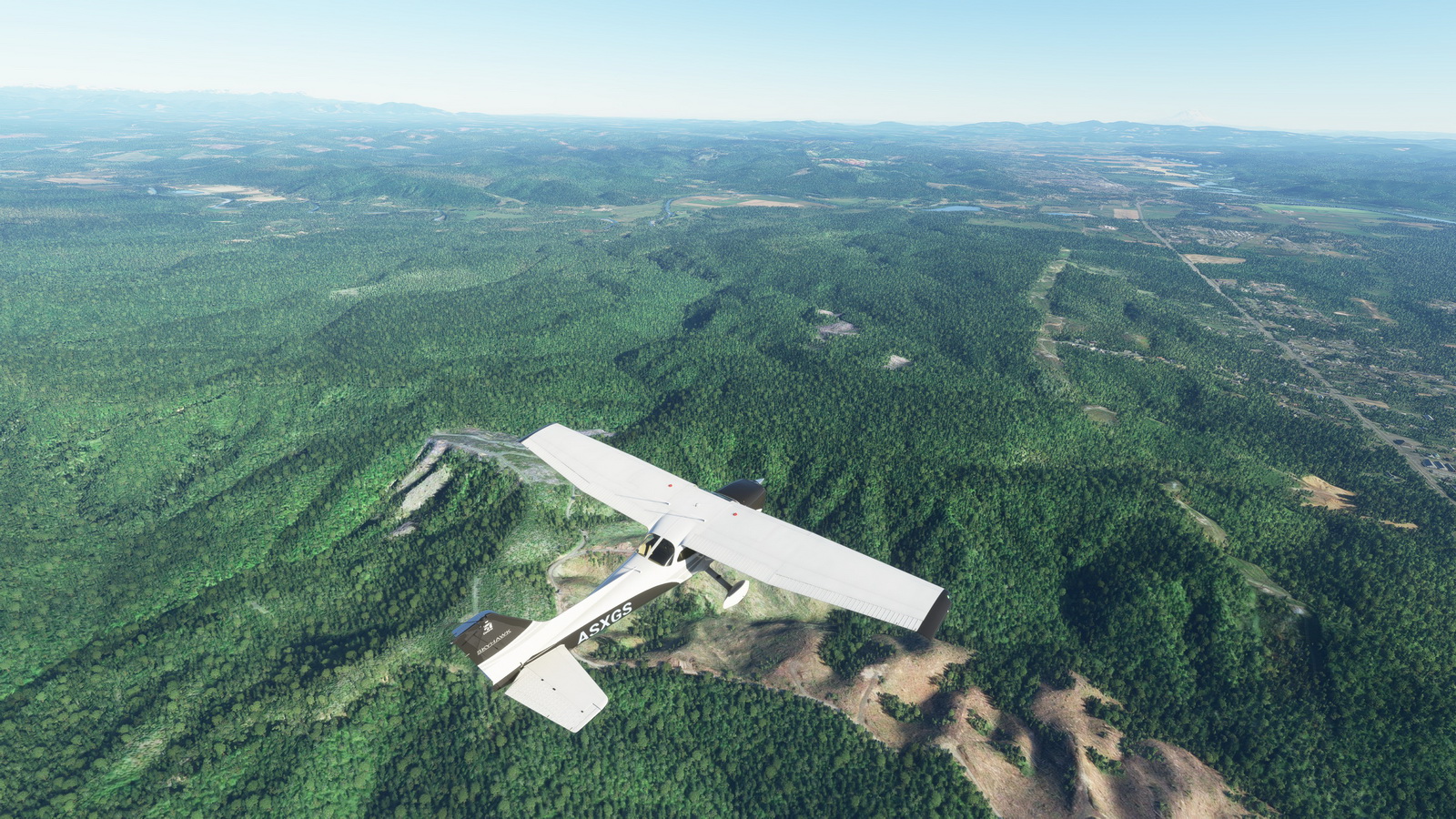
In addition to some adjustments to the maximum and minimun values in my last modified vegetation file reported in Post 648, a new tweak to display trees to far distance without performance hit (click image below to enlarge) is further included.  It has become my MUST-HAVE tweak for MSFS 2020.

As we know that simulators only load up autogens within specific distance surrounding the aircraft.  With this mod showing vegetations virtually unlimited in far distance, the popping up of other autogens becomes unnoticeable — giving you an illusion that everything is already in place.

The last modified vegetation file I put in the Freeware Section in my Store has been updated with this new one. Continue reading

653: My Cockpit Rev #25

During the last two holiday weeks, I basically spent all my free time on playing MSFS 2020, and fine-tuning the computer and MSFS setup.  Now the Radios from Flight Illusion is working fine with MSFS in general.  Even though not fully compatible, yet they look great together with the FIPs.

Regarding the Thrustmaster TPR Pendular Rudder I added to my system last November, I would say it is the best from all Pedals I’ve ever used. Continue reading

652: Backup Your US Tour

MSFS just released a new update.

In the last US update, the Japan Tour was gone.  Should you don’t want to lose the US Tour this time, you’d better backup its folder from the Mission directory first:

C:\Users\<username>\AppData\Roaming\Microsoft Flight Simulator\MISSIONS\Asobo\US_Tour

Also backup the asobo-liveevent folder from the Official directory.

Quite annoying, isn’t it?  Many users are requesting Asobo to keep the highlighted Tours after updates.  Obviously it’s not yet heard so far. Continue reading

651: My Cockpit Rev #24

Plan can’t catch up with change — my cockpit rebuilding project is a good example.  It was virtually completed right before the launch of the MSFS 2020 a couple of months ago.  Many components I built for P3D then have to be reworked to cope with the new simulator now.

For  example the Flight Instrument Panels (FIPs) that were networked and now have to be connected to the main PC directly; and the two TVs on both sides are no longer usable for surround purposes as they are in different sizes (main TV 65-inch; side TVs 49-inch) that MSFS doesn’t support.

Fortunately, new plan is catching up.  Except the avionics set, others have been set properly even though finetuning is still needed.

Also, there are new components to be added soon.  Continue reading

650: Location of my Gauges for MSFS

A friend’s friend who asked him where would be the best place to put my gauges for MSFS.  The question was referred to me later.   Although I already replied to him, I think it would still be useful to put a post about it.

=====

For those who are installing my new gauges for MSFS:

1.
If you are using the Logitech’s Plugin for MSFS, just run the installer in the gauge package, the new gauge(s) will be placed in the plugin folder accordingly and the corresponding PluginPages.xml will be updated automatically.

2.
If you are using SPAD.neXt, the location is all up to you, because you’ll have to add the gauge folder(s) in SPAD.neXt so that SPAD.neXt knows where to find the gauges.

=====

For those who have/are installing my gauges for FSX/P3D, there are three options to use the gauges in MSFS: Continue reading

649: 4K Monitor Refresh Rate for MSFS

Since my new PC with an RTX3090 graphics card was straight out from the box, the framerate steadies around 30 under Ultra settings.  Even though I was a bit surprised by this low number, I didn’t pay much attention to it since everything seems to be working fine.

Until the last weekend I had some time seriously looking at the new system.  I found the framerate didn’t change much no matter what I did to the settings.  The framerate still sat around 30 somethings.

I started to wonder why since the framerate on my other computer with an i7 6850 CPU and 1080Ti graphics card gains a lot more than that under Ultra settings.

Excluding the CPU and the graphics card, the most suspicious cause of the low framerate seems to be from the monitors I found lastly. Continue reading