147: Wing Leveler Fix for FBW Aircrafts

A fan reported that my earlier Post 123 regarding Disable Unintended Auto-Pilot Wing Leveler doesn’t work on FSX’s default Airbus A321 and requested help for a fix.
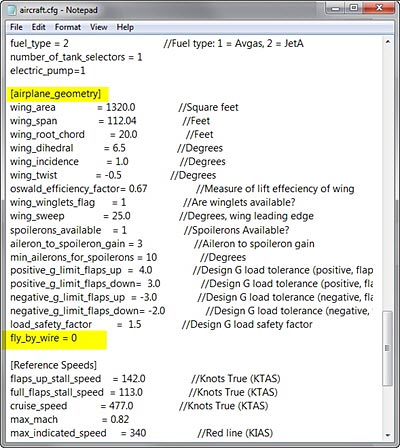
The issue is caused by the activation of Fly-by-Wire (FBW) function on the aircraft and  followings are two solutions:

FIX 1:

Open aircraft.cfg of A321 and modify the parameter of  fly_by_wire from 1 to 0 under the [airplane_geometry] section

fly_by_wire=0

This will disable the fly-by-wire function simulated on the aircraft and allows the Auto-Pilot Wing Leveler (Ctrl-V) to work.

FIX 2:

Continue reading

127: Put the Tower Radar on the Plane

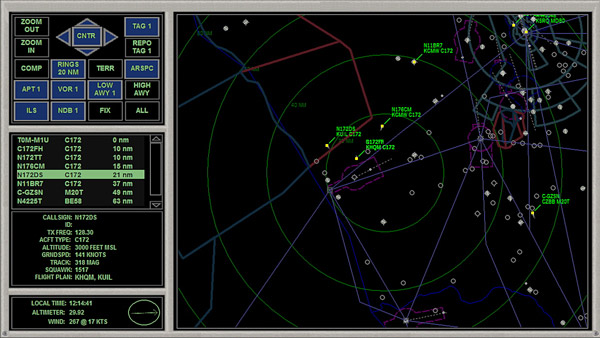
Each aircraft in FSX can be equipped up to 9 different panels, and each of these panels can be called up by pressing the [SHIFT] plus a number key from 1 to 9.   However, only a few aircrafts in FSX are actually equipped with all 9 panels.   Most aircrafts use less than five.

The following tweak adds the radar panel found in control tower to virtually any aircraft.

Don’t remember where I found this tweak in the first place (credit should be given to the one who shared this).    It is an interesting and useful one and quite easy to implement.    Furthermore, I had it simplified.

Here’s how to add the radar to the Cessna 172 as an example.    Same procedures apply to all other planes:

Continue reading

125: Aircraft Door Fixes

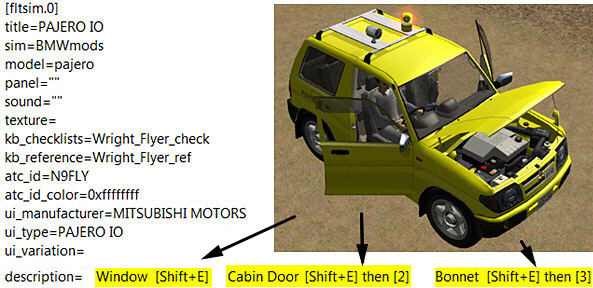
The Mitsubishi Pajero by Mitsuya Hamaguchi is supposed to have its Door Windows, Cabin Doors and Engine Hood opened (or closed) when [SHIFT+E][SHIFT+E] then [2], and [SHIFT+E] then [3] are pressed respectively.

However, due to a mismatch error in its aircraft.cfg file, its hood (bonnet) cannot be opened when [SHFT+E] then [3] is pressed.

Continue reading

123: Disable Unintended Auto-Pilot Wing Leveler

Some aircrafts in FSX, both default and add-on (such as T210), will turn on Wing Leveler automatically when Altitude Hold is activated, meaning that manual control of the aileron is also disabled.

To regain the control of it, one can press Ctrl-V on the keyboard to disable (or enable) the function.

Better still, one can modify the aircraft.cfg files of such aircrafts, and add the following command lines under the [autopilot] section, so that Wing Leveler function could be independent from Altitude Hold permanently.

[autopilot]
default_bank_mode=0
default_pitch_mode=0

Assigning “1” to both values will reactivate the associated Wing Leveler function with Altitude Holder under auto-pilot mode.

96: Standardize Panel Key Assignment

Many third-party aircrafts have their own set of keys assigned to different panels.
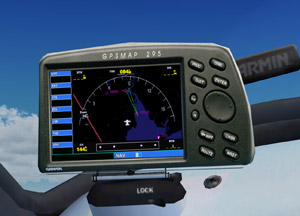
For example on default aircrafts, pressing SHIFT-3 will invoke the GPS panel.   But this key-combo is not necessarily able to call up the GPS panel on Carenado and Aerosoft aircrafts.

If one has assigned an external button, say button 3 on a Saitek FIP, for the GPS panel, the difference between the default and third-party aircraft panel key assignment therefore will be quite annoying when aircrafts are changed.

To standardize panel key assignments across different aircrafts: Continue reading

66: Give the Aircraft a Little Push

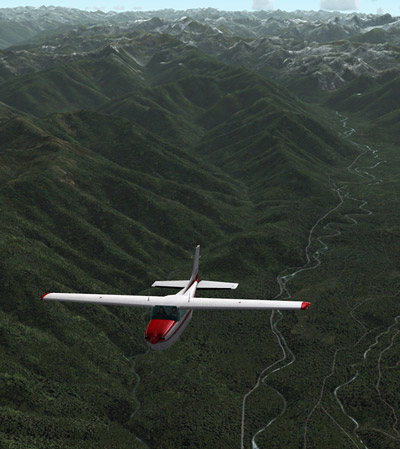
Purchased a few third-party aircrafts but the default C172 is still my favorite.  It will be perfect if the plane can be more powerful and fly a little bit faster like the Skylane 182.

Here’s how I “installed” the 182’s six-cylinder, 235hp engine to my C172:

Continue reading

56: Remove Standard AI Traffic

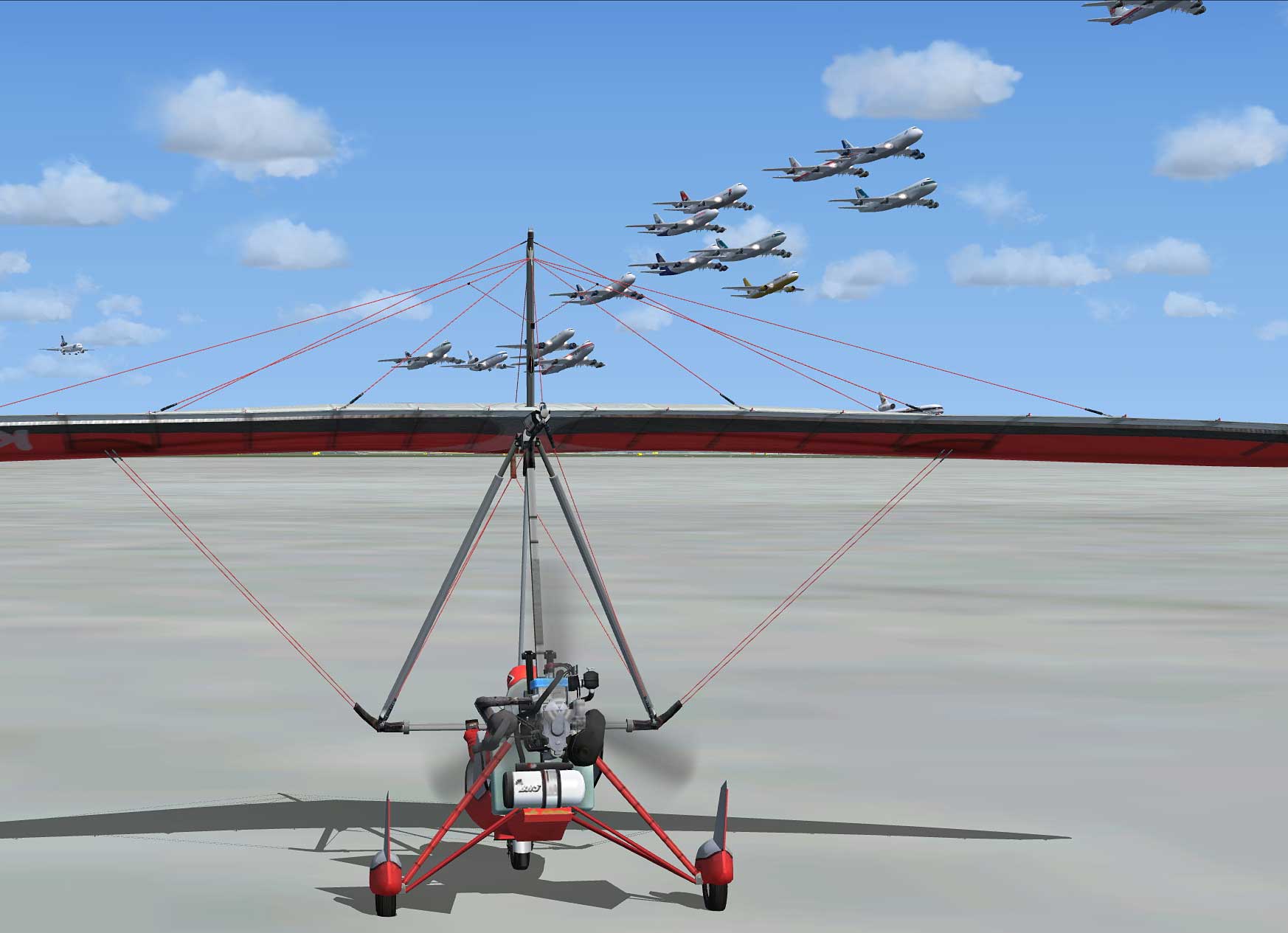
My system has Just Flight’s Traffic X and a few other AI traffic addons installed.   They together brought a lot of AI aircrafts and traffics, which makes the default ones redundant.

Naughty Fleet of Airplanes

To reduce overlapping and enhance system performance, the TrafficAircraft.bgl under X:\Microsoft Flight Simulator X\Scenery\World\Scenery was moved to a backup folder so that no standard AI traffic is loaded.

To restore, just putting back the file to the original folder will do.

55: Redefine Virtual Cockpit Zoom Level

I mostly fly with Cessna and I want the virtual cockpit to initiate with a zoom level of 0.6 when a session starts.  There are two options to achieve that:

OPTION 1:  Save a New Default Flight

1) Start a flight with Cessna

2) Adjust the zoom level to 0.6 inside the virtual cockpit with “=” or “-” keys

3)  Save the flight as the new default flight

OPTION 2:  Modify the Default Startup Flight

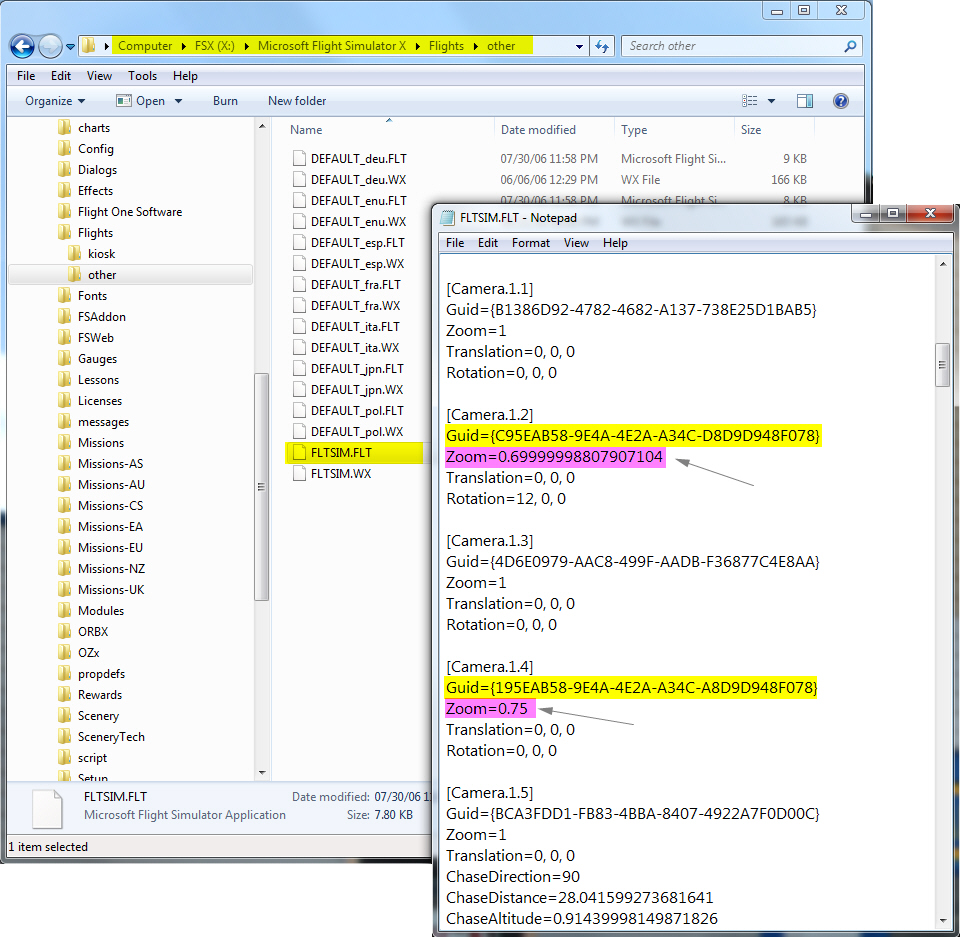
1) Open the default flight “FLTSIM.FLT” (or the earlier saved default flight) with Notepad

2) Look for Cameras with Guid = {C95EAB58-9E4A-4E2A-A34C-D8D9D948F078}

Note: This Guid number is assigned to Virtual Cockpit in FSX

3) Change the Zoom value to 0.6

Both Option 1 and Option 2 can easily set the zoom level of virtual cockpit to one needs.  However, the zoom level is likely to be changed when the aircraft (Cessna in this case) is swapped. Continue reading

38: My Ultimate Cockpit Views

Aircrafts in FSX comes with many views (or cameras) and they are set with different zoom levels.  They are quite troublesome since I only want three of them to view from cockpit:

  1. View from the pilot seat on the left
  2. View from the passenger seat on the right
  3. View from the cockipt without panels

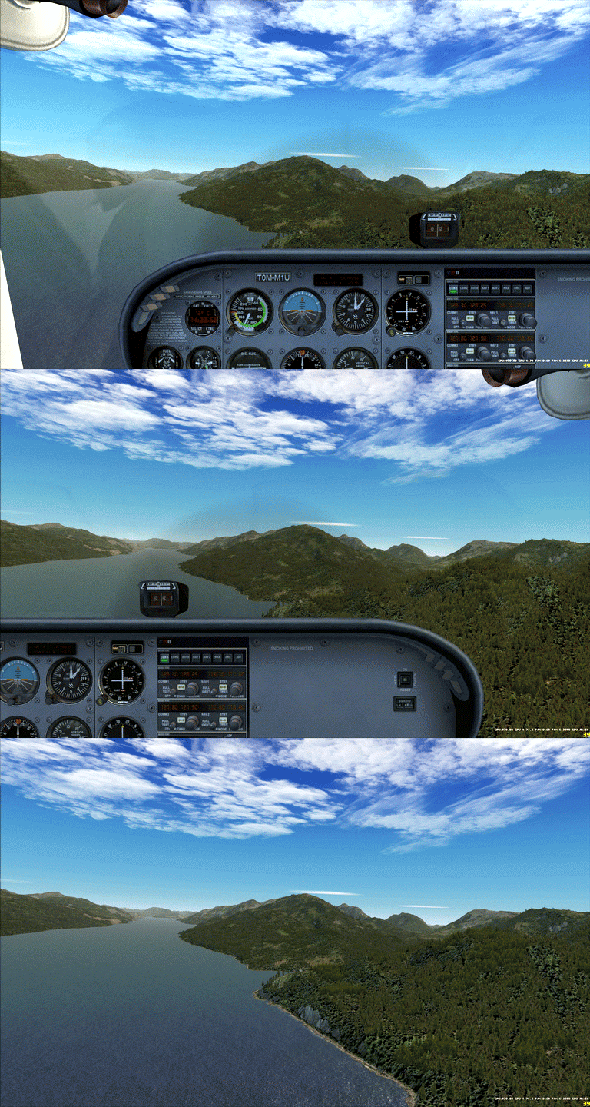
Moreover, I need these views to start with the same zoom level and/or eye position, so that the scenery in front stays unchanged when views are cycled through.

Always start with the same zoom level and keep scenery background remain in position

Above is the cockpit view effect I achieved on the Cessna 172 through the tweaks of Continue reading