

36: Add New Views

The earlier post Remove Unwanted Views talks about getting rid of some views (cameras) that one doesn’t need.  This one talks about adding new views (cameras).

My system has a few Pro Flight Instrument Panels (FIPs); therefore, I want a full scenery monitor display without showing the 2D or 3D cockpit.

Although this can simply be achieved by pressing W to turn off associated panels in 2D cockpit view, the cockpit will appear again when eyepoints are panning to the right or to the left.

To address the issue, a number of options can be considered.
Continue reading

34: Smoke Gets in Your Plane

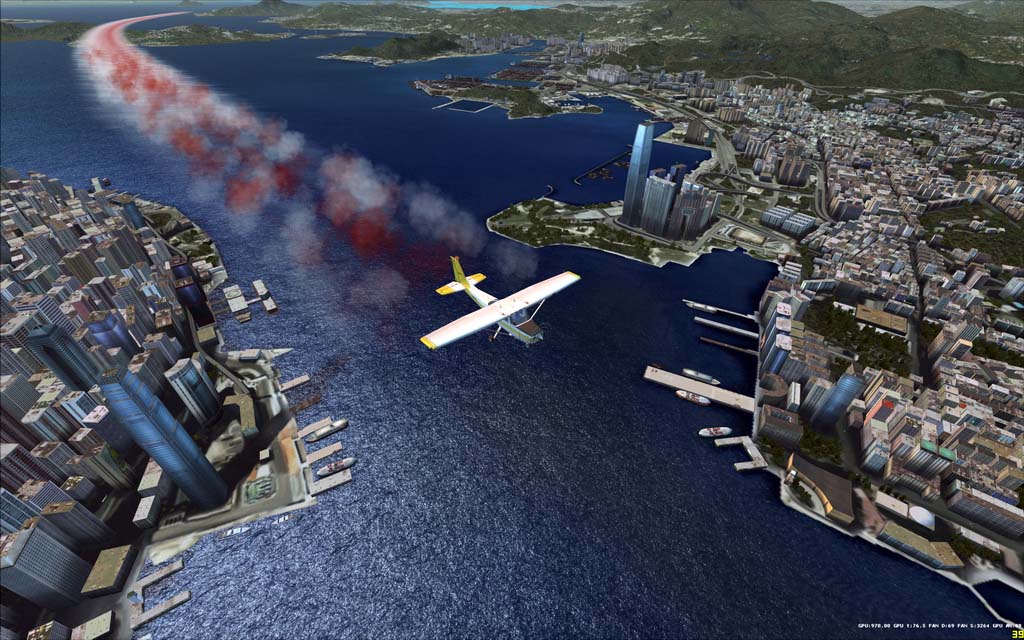
In FSX, only the Extra300, FA-18 and P51 aircrafts are pre-installed with an exhaust smoke system which can be activated by pressing the “I” key on the keyboard.

Customized Red and White Smoke System

To add the smoke effect to other aircrafts, insert the following lines at the end of the aircraft.cfg of your choice under SimObjects folder:

Continue reading

26: Remove Unwanted Views

In FSX, there are many views one can choose from and cycle through by pressing S (next category) and A (next view in category) on the keyboard, including Cockpit (2D), Virtual Cockpit (3D), Locked Spot, FlyBy, Top-Down, etc.   Often there are views that we seldom or never use, however.

Steps below will get rid some of them for good.

Option 1:
1) Locate Cameras.cfg (x:\Users\<user>\AppData\Roaming\Microsoft\FSX) and make a backup of it
2) Open the file and you will find 11 Camera Definition sectons inside
3) Just delete the Camera Definition section(s) you don’t need
4) Save and Exit

Continue reading

25: Follow Your Eyes

FSX Banking Camera is a very interesting utility that can change the viewing angle of virtual cockpit while the aircraft is banking.  It is, in some way, like a simplified version of Natural Point’s TrackIR.

Unlike TrackIR, it doesn’t need any hardware and won’t cause any FPS dropping.  Moreover, it is free.

The program can be downloaded from the developer’s website which includes more information about the program.

20: Adjust Virtual Cockpit Panrate

There are two ways to adjust virtual cockpit panrate:

Option 1:

* Locate Cameras.cfg under C:\Users\<user name>\AppData\Roaming\Microsoft\FSX directory
* Under CameraDefinition.002 (Virtual Cockpit) section
* Modify the number (degrees per second) of the following two:

  • PitchPanRate=15     // vertical pan rate — I am using 40
  • HeadingPanRate=45     // horizontal pan rate — my setting is 100

* Add the following line right after the two PanRates to improve response time

  • PanAcceleratorTime=0   // zero equals to no delay

Continue reading

18: Redefine ATC Window Size and Position

The window of ATC by default is quite large.  Although it can be resized and repositioned as desired and remains applicable during the flight-simming period, it will revert back to the default situation when FSX is exit.

To change the default size and position of ATC permanently:

  1. Open the default flight (or any flight) in FSX
  2. Activate ATC
  3. Resize and reposition the ATC window as desired
  4. Save the flight as default again
  5. Restart FSX

The ATC window will start with the new size and position just defined from now on.

09: Disable Unwanted Airplanes

There are certain aircrafts we may not want to display in FSX at all.  Besides uninstalling them from the system, we can go to the SimObjects folder and

1)
Rename the “panel” folder to “panel-0” to disable all aircrafts under the same group; or

2)
Open aircraft.cfg and change the “panel=” of specific aircrafts to “panel=0” to hide them from showing up.
