
One thing that frustrated me for quite some time was the RealSimGear Device Interface wouldn’t load up with MSFS automatically.
After the Interface was installed, I moved the whole package out from the MSFS\Community folder to the \Addons\Utility\RealSimGear folder on the same drive in my system, so that it could be activated via MSFS Addon Linkers.
Then I edited the Path of the Device Interface Module accordingly in the exe.xml file as follows:
<Launch.Addon>
    <Name>RealSimGear Add-on</Name>
    <Disabled>False</Disabled>
    <Path>F:\Addons\Utility\RealSimGear\bin\RealSimGear.exe</Path>
</Launch.Addon>
The path was correctly pointing to the RealSimGear.exe but the Device Interface simply wouldn’t load with MSFS.
I had been scratching my head for quite some time why the setting wouldn’t work until today Continue reading
 to the Main Menu on its first run. If there wasn’t a note about the World Update V in the MarketPlace, I would have missed it in the first place.
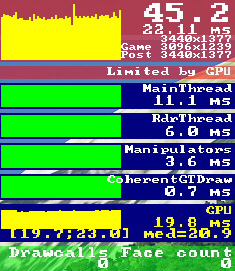 In a “conversation” I had with Michael Basler in Germany earlier last month, he said that his fps were literally cut by 50% when he shifted a pop-out screen to a touch monitor connected to the main computer.
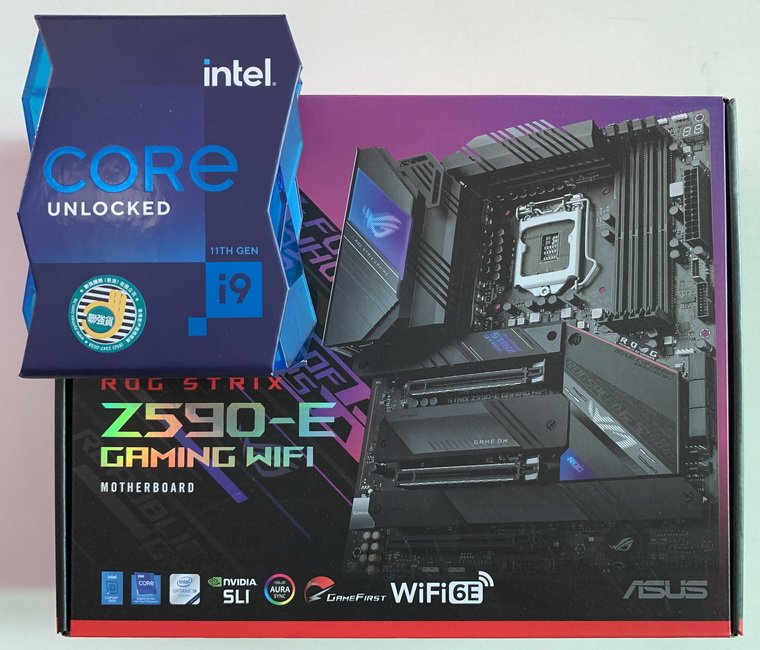 unintentional and there’s a long story behind due to unrecoverable CTD from MSFS 2020 on the Apex system.
 FS Times