868: Command to Toggle ATC Panel in FS2024

One of the many confusions FS2024 brought to me, as a long-time flightsim user, is the changing of many widely used FSX/P3D/FS2020 hotkeys and commands.

For example the Toggle ATC Panel action, it took me a while to figure out that I need to change to use the new “Open Communications Panel” command instead of FS2024_ATC_Panelthe previous “Display ATC”.   Because the latter now can only open the panel but not close it.
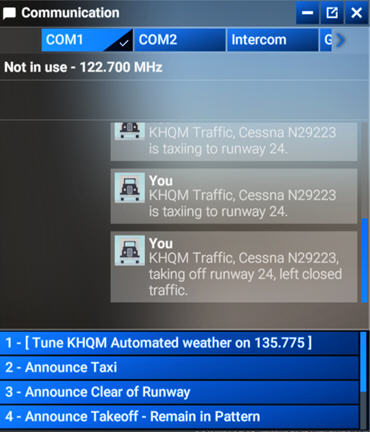
Similarly bad, due to the minimum size of the UI texts used in FS2024 is still relatively big and the ATC panel is unable to resize vertically, only four choices can now be listed.

In other words, we are forced to use the mouse to scroll forward and backward on the narrow scroll-bar many times if we want to see all the options available.

This is awfully clumsy and not user-friendly at all, not even to the X-Box platform.

I know complaining won’t help change what has happened. Continue reading
864: Using FS2020 Addons in FS2024

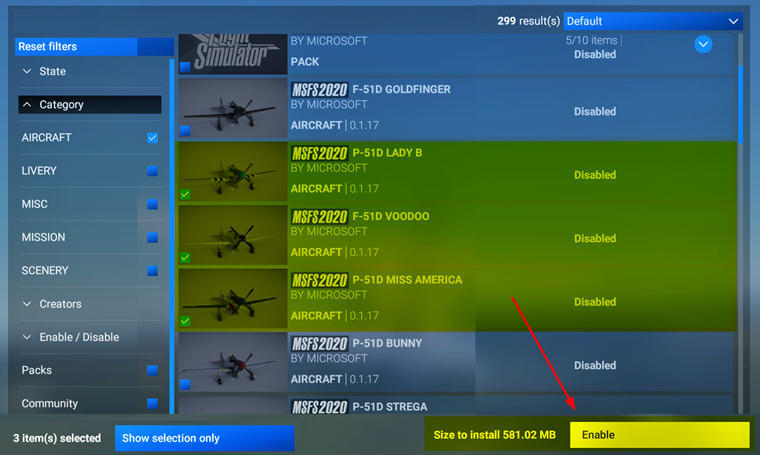
FS2024 allows the use of FS2020 addons.   But we have to enable them manually in My Library.  Otherwise, they won’t show up.
FS2020_Enable
This applies to third-party addons, such as aircraft, scenery, etc., we purchased from Steam or MS Store directly, as long as they are compatible and available.

Addons purchased from other stores Continue reading

863: Using FS2020 Keyboard in FS2024

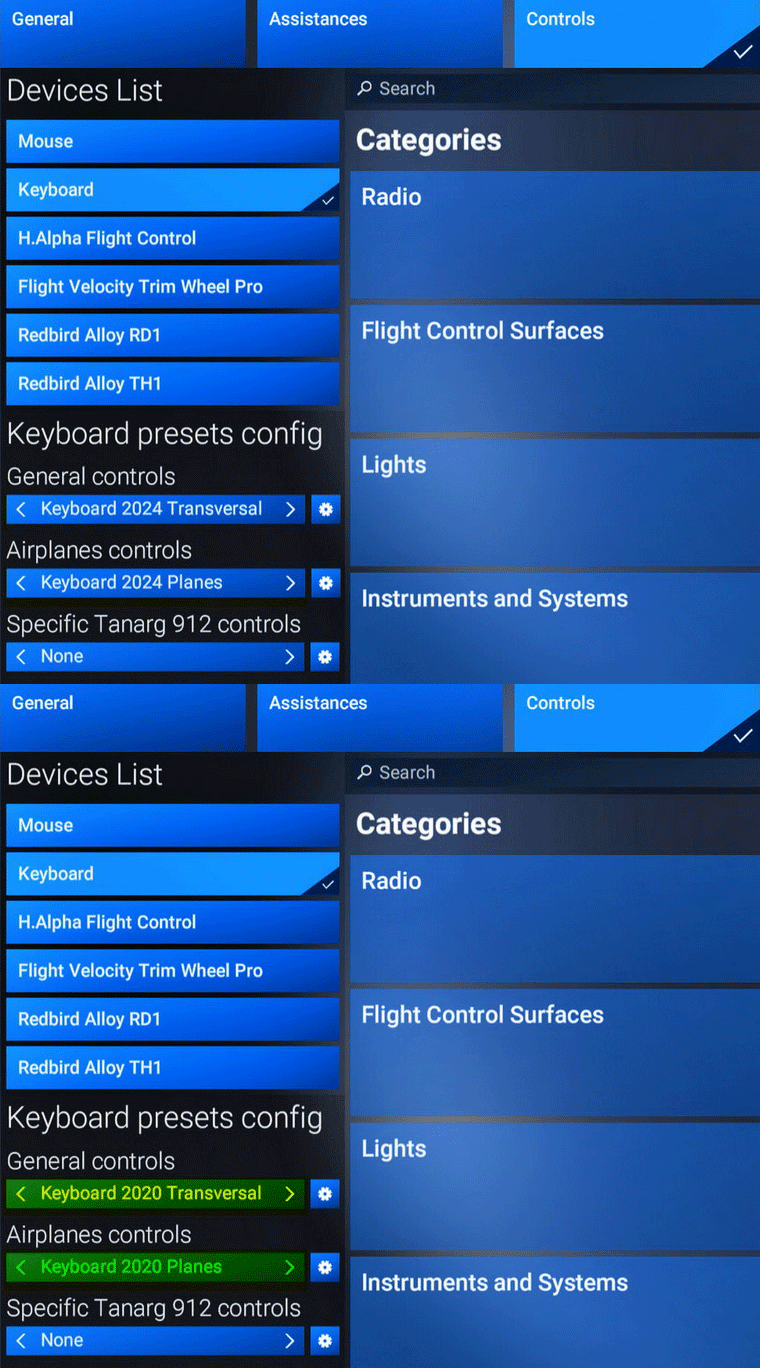
In FS2024, there’s not only coming with a keyboard file structure very different from the one in FS2020, many of its commands and hotkeys are different, too.

I must say re-adapting to the new keyboard usages is one of the greatest annoyances I don’t want to deal with.

Fortunately, Asobo is considered enough to include an FS2020-style keybaord set to make my life easier, even though it is not 100% compatible due to new features and functions added to the simulator.FS2020_KB01
What I do is to Continue reading

861: Changing FS2024 Community Folder Location

By default, the FS2024 Community Folder is created under:
C:\Users\Tom\AppData\Roaming\Microsoft Flight Simulator 2024\Packages\

There are two ways to relocate it to another directory of your choice for easy access.

1)
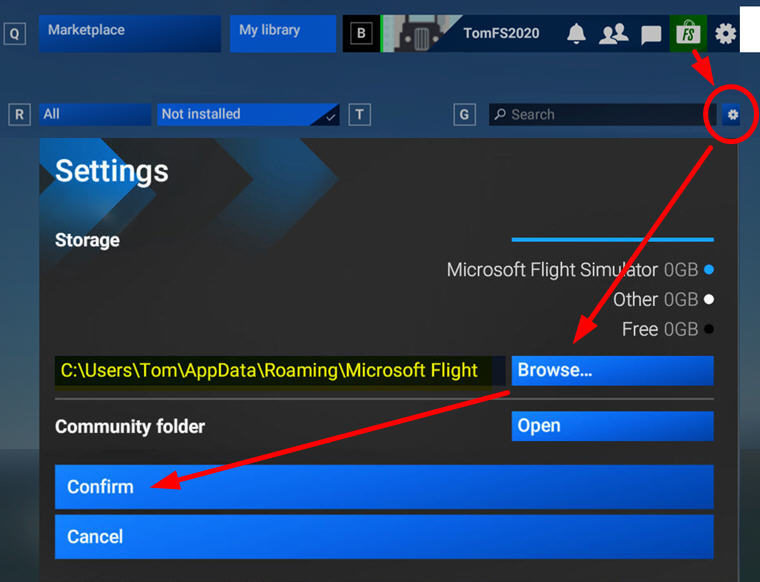
Go into Market Place, click the Setting Icon, then Browse for and Confirm the directory of your choice to be the new Community folder for FS2024.  I am using “F:\FS2024
FS2024_CommunityFolder
2)
Go to  “C:\Users\Tom\AppData\Roaming\Microsoft Flight Simulator 2024”  directory

Continue reading

860: My Key MSFS Folder Locations (Steam)

I have both MSFS 2020 and 2024 installed on F:\Drive of my computer.  Followings are my mostly accessed folders during configurations and modifications.

Main Programs

FS2020
F:\Steam\steamapps\common\MicrosoftFlightSimulator
FS2024
F:\Steam\steamapps\common\Limitless

Controls (Input Devices)           

Continue reading –>

859: FS2024 with ReShade

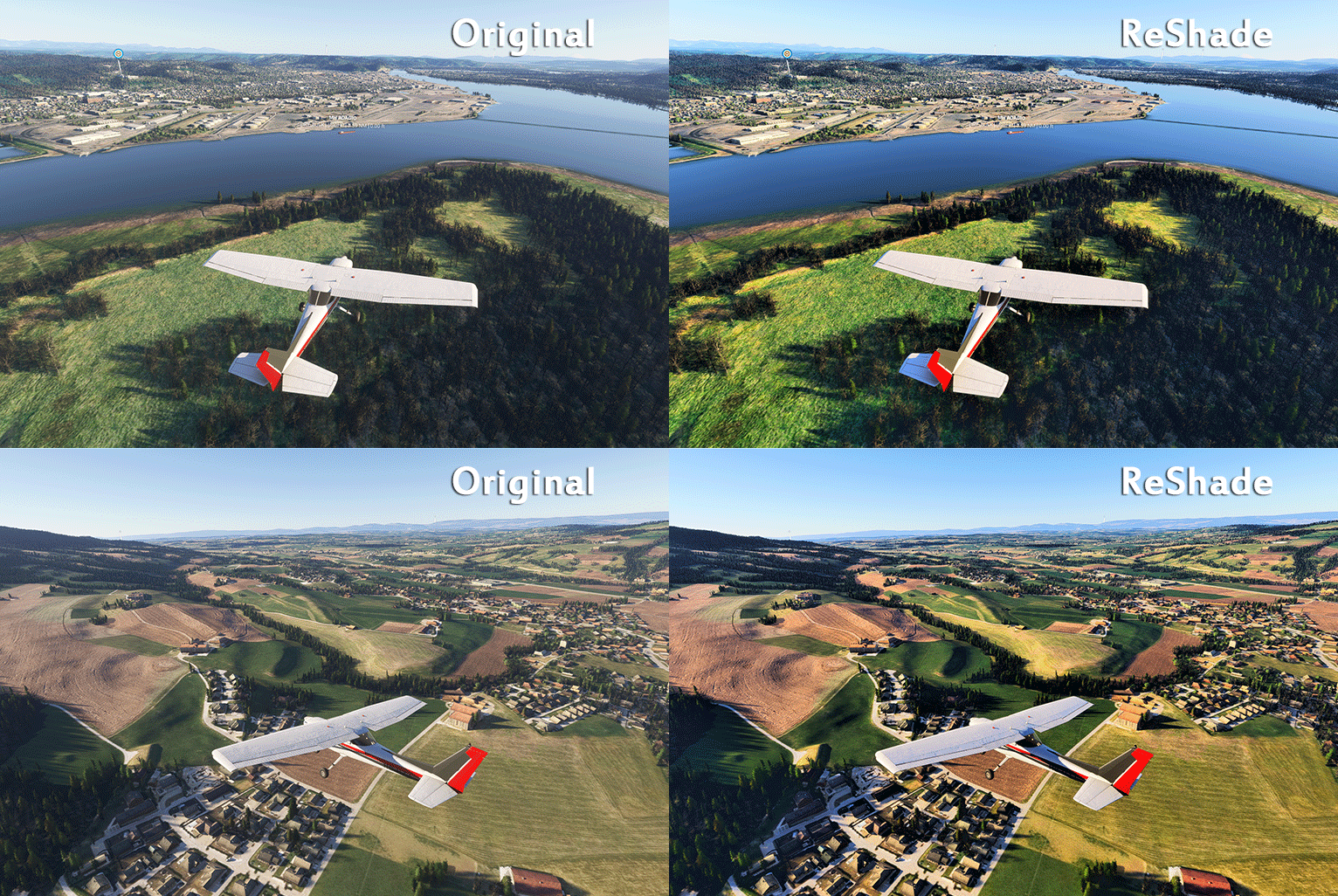
The hazy atmospheric effect in FS2024 is even worst than FS2020 IMO, making the scenery dull and pale.  Fortunately, ReShade is still good for the new platform.
FS2024_ReShadeBetter still, all my FS2020 ReShade settings can be applied onto FS2024 with no issue.  That comforts me a lot while playing the sim with so many bugs to be fixed.

Here’s my current Continue reading

858: Copying Custom Cameras to FS2024

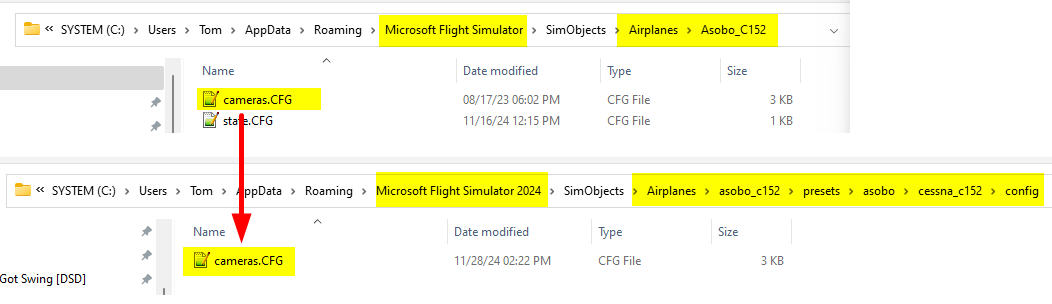
If you have many custom cameras set up for aircraft in FS2020, you can make use of them immediately in FS2024 via simple copy-and-paste.

In FS2020, the custom cameras are stored under specific aircraft folders beneath the following directory path:
C:\Users\[UserName]\AppData\Roaming\Microsoft Flight Simulator\SimObjects\Airplanes\

In FS2024, the path is similar:
C:\Users\[UserName]\AppData\Roaming\Microsoft Flight Simulator 2024\SimObjects\Airplanes\

However, the custom camera folder structure of DEFAULT AIRCRAFT in FS2024 are now more complex than that in FS2020 (click below image to enlarge):
FS2024_CameraDefaultTherefore, we’ll need to pay extra attention to find out the correct folders when copying DEFAULT AIRCRAFT cameras to FS2024. 

For THIRD-PARTY AIRCRAFT, Continue reading

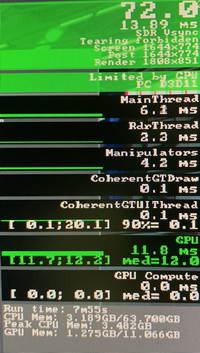
837: FPS Display Now Stays ON

IMG_5814_resizeThe Show FPS display screen activated from Developer Mode now stays on even after Developer Mode is turned off.  It didn’t in the past.

This is good.  I don’t know when it was changed as I just noticed it not too long ago.

Sadly, there’s still no keyboard shortcut or hotkey to call it up or turn it off during the game.  We still need to go thru the Debug pull-down menu under Developer Mode.

Just in case you are not aware.

836: My “Limited by Main Thread” Fix

Like many other friends who have a decent computer but continuously haunted by the “Limited by MainThread in RED phenomenon while displaying the FPS under Developer Mode, I tried somethings last weekend that turned it in GREEN, even with about 10 fps increase in average.  The result really exceeds my expectation.


My computer is still the i9-11900K CPU with GeForce RTX 3080Ti card and 34-inch (3440 x 1440) Mi monitor.  Here’s what I did:

Continue reading