647: Logitech MSFS Plugin Won’t Work Alone

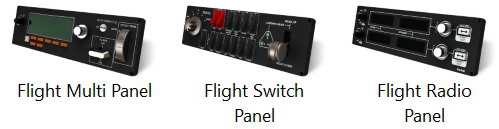
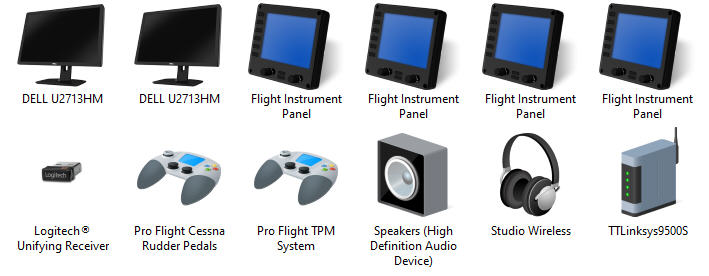
When I installed the Logitech’s MSFS Plugin onto my two computers (one new, one rebuilt) a couple of weeks ago, I got puzzled because all my Logitech’s Pro Flight Panels worked nicely with MSFS, except the Flight Instrument Panels (FIPs).

There were nothing on the displays — no serial numbers, no product images.  All screens were blank.  And the most frustrated was Windows recognized them all and said they worked normally.
On my last computer I just replaced, the MSFS Plugin works seamless without any issue.  I just have the Plugin installed and off it goes.

It took me nearly a day to figure out that Continue reading
645: Auto-Slew G5 HSI in X-Plane

A user of my XPL G5 gauges recently sent me a note saying that the CDI instruments found in the C172 do not automatically turn to the GPS desired course by default.  But we can make a little change to “activate” the G5 HSI to auto-slew to the front course.

Here’s how to do it:

Open the Cessna_172SP.acf with a text editor in the “\X-Plane 11\Aircraft\Laminar Research\Cessna 172SP” folder.

In the file, search for Continue reading

639: Full Forward View #2

In my last post about setting up a Full Forward View without Instruments, Michael sent in a comment below:

I’m in the same situation and have been using this for quite some time, however, with one modification:

I first make a copy of the camera file using (I think Alt+Ctrl+0). This will be saved under, e.g.

C:\Users\[your profile]\AppData\Roaming\Microsoft Flight Simulator\SimObjects\Airplanes\Asobo_C172sp_classic

In this file you can make the amendment above.

You can then switch back and forth between the “normal” and the “shifted” camera using Alt+0. I found this somewhere on the official forum. This way you don’t have to modify the original files.

Thanks Michael and that’s another approach of creating a full forward view with no instruments, too.

Well, either method has its pros and cons: Continue reading

638: Full Forward View with no Instruments

I have chosen “LANDING” as my default camera in MSFS.  But since I already have a physical DIY cockpit, all I want is a clear full forward view without the virtual cockpit and its instruments.

Here’s how I do it quickly: Continue reading

637: User-configured Input Data Location

One thing I in particularly dislike in MSFS is the way how it handles Control inputs.

In FSX/P3D and X-Plane, all you need to do is simply pressing the buttons or switches on a controller, the programs will recognize them for the functions you want to assign them to immediately.   On the contrary in MSFS, you’ll have to find out the mappings of the buttons and switches on a controller or accessory first before you really know which buttons or switches are which to assign them to the intended functions.

That’s not just user-unfriendly, it’s pretty awkward.  Hope that it’s going to change in future update.

Anyway, here’s the location where user configured control data are stored on my computer — “C:\Program Files (x86)\Steam\userdata\270793180\1250410\remote“.

My Steam Library and MSFS are on F:\ drive.  Continue reading

631: Get MSFS from Steam Instead

In the past weekend, Lukas, a friend who was experiencing similar MSFS installation issue I had had two months ago asked me how I had the issue solved in the end.  I told him I really had no idea since I didn’t do anything but just waited for about a month to get the app with the update patch again.  The issue was solved by itself, probably due to the new updates, or something else.

He replied he wouldn’t want to wait and asked if there were any suggestions.

Hm…after some thoughts…I recalled Michael Basler in Germany once recommended me to get the simulator via Steam instead of the Microsoft Shop.  So I passed the suggestion to Lukas. Continue reading

628: The Missing FipGuages.xml is Found

Have found the actual workable FipGuages.xml (which stores the FIP gauges line-up information) reported missing in Post 626.  Now all basic information regarding Logitech panels running with MSFS-plugin is complete.

The file is stored under the C:\Users\tomts\AppData\Local\LogiMicrosoftFlightSimulator directory.  The one comes installed in the Plugin directory (C:\Program Files\Logitech\Microsoft Flight Simulator Plugin) is fake.

A new GaugeSwitcher utility for the MSFS plugin Continue reading

627: MSFS-Compatible Gauges Clarification

After reporting that my existing FSX/P3D Gauges can be run with the new Microsoft Flight Simulator (MSFS) via Logitech’s MSFS plugin, or the latest FSUIPC, or SPAD.neXt in the last few Posts, I received some emails asking for more details and clarifications about this MSFS-compatibility and my plan on MSFS specific gauges.

Here’s the reply to those who are interested: Continue reading

624: Running Logitech Panels in MSFS

I pulled out my Logitech Panels from storage earlier today.   After a few hours testing, they are successfully communicating with MSFS via FSUIPC 7, like the FIPs.

Followings are the steps I found the most effective:
Continue reading