910: Adding Onboard Passengers

Here’s how to add onboard passengers on the aircraft if you need companions during your flights.

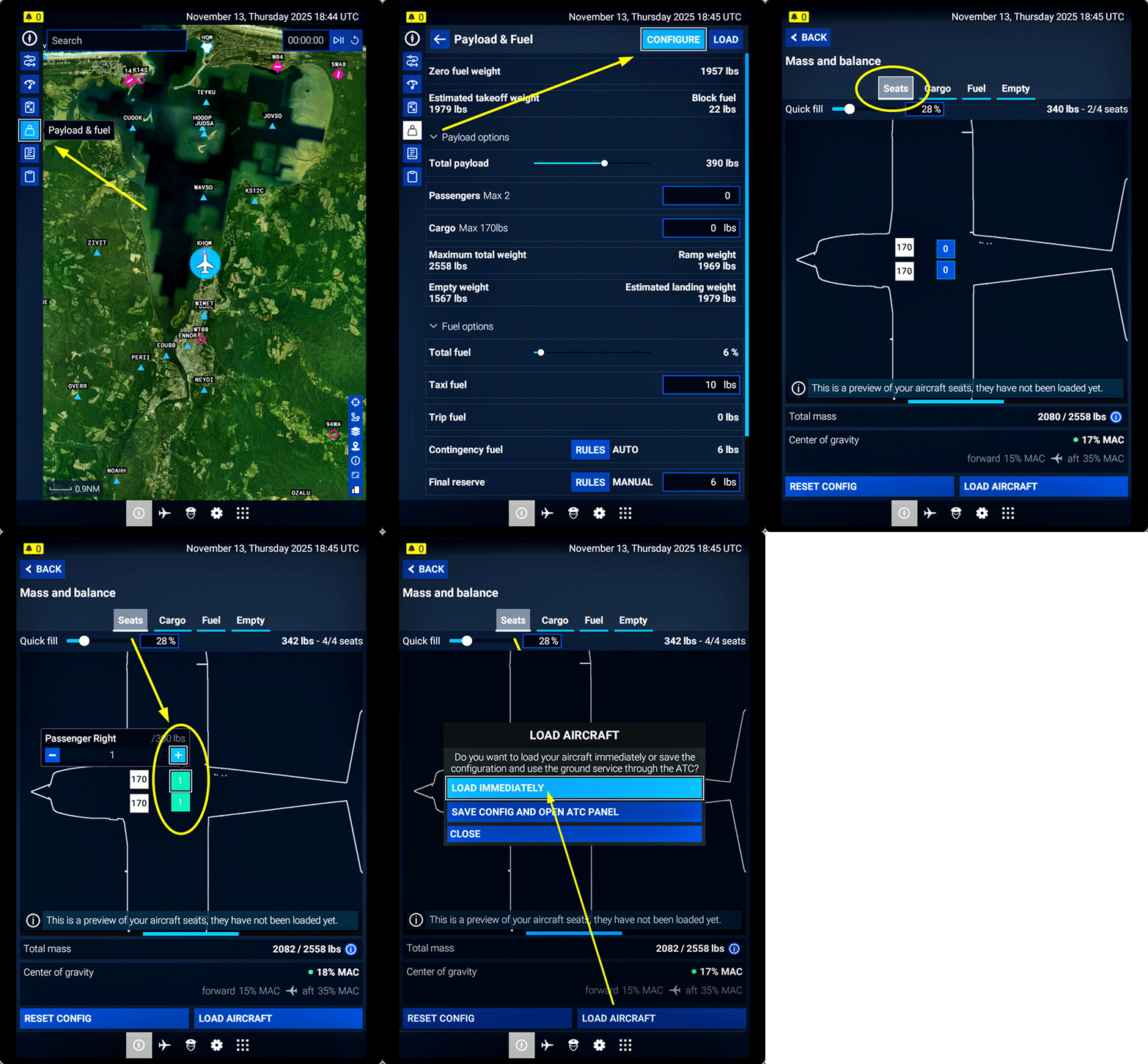
1.) Open EFB
2.) Select Payload and Fuel
3.) Click Configure
4.) Select Seats
5.) Add passengers to the empty seats
6.) Click Load Aircraft and Confirm

For larger aircraft, the procedure for adding passengers is more or less the same as described above, although there may be some differences between different aircraft.

Note that characters are generated at random. They could be men, women, or children of different ages.

If you wish to fly alone, Continue reading
830: A Quick Guide to RNAV Approach

Since the story “808: VORs are Now RNAV Compatible” was posted in March, once in a while I received enquiries from friends who asked me for instructions to run RNAV Approach.  I used to reply them by emails individually.  But I think it does no harm to write up a short post for those who might be interested.

RNAV (Area Navigation) is an aviation method that allows an aircraft to fly along any desired flight path defined by waypoints under GPS operation instead of navaids.

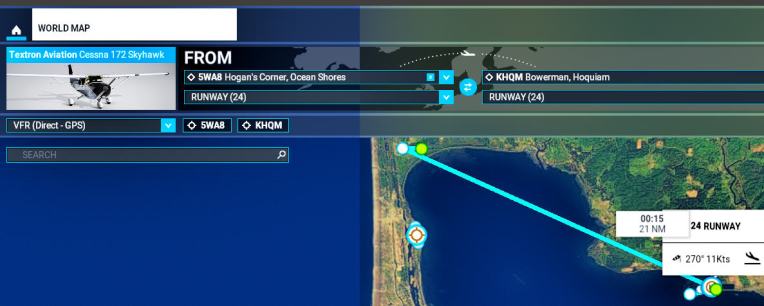
Here’s a quick guide about setting up the RNAV Approach from 5WA8 to KHQM as demonstrated in the Post mentioned above:

1.
Open WORLD MAP and choose to fly the Cessna 172 from 5WA8 (Hogan’s Corner) to KHQM (Bowerman)
RNAV_01 Continue reading

558: Making Your Own Aircraft Reference


As mentioned in my last post, not all default nor third-party aircraft come with an aircraft reference file.   If needed, to create a missing one isn’t difficult at all.

The Aircraft Reference is basically an html-formatted file with a name containing aircraft model” + “_REF and a filename extension of “.htm”   It is located in the aircraft folder under “SimObjects/Airplanes“.

If you don’t have much knowledge about html, you could simply: Continue reading

553: A 6-Part “How-To” Video from Father Dane

After the cockpit video, Father Dane further sent me the following information regarding the objectives of the simulator project that he built.  It also includes a 6-part tutorial explaining the very basics of flying.

Although Father Dane mentioned that most followers of FSX Times (many are real pilots) should not need these simple information, and some of the followers might have seen them in his channel already, I am still very happy to putting them here as they are very inspiring.

I built the C172 simulator as a Lenten project last year for the use of some local young students who wanted to find out if they really had the flying “bug”.

As it happened, they did and now they are all involved in taking real flying lessons on their way to earning a PPL. Continue reading

545: Connect G430 to NAV2 CDI in X-Plane 11

A pilot friend (who prefers anonymous) sent me a note about how he connects the Reality XP GNS430 to the NAV2 CDI on the C172SP in X-Plane 11.  I don’t have any products from Reality XP myself but I believe the instruction should be of interest to many others who own the product.

Followings are the instructions: Continue reading

482: Logitech FIP Driver Migration

Some friends email me saying that they are interested to know how I upgraded (“migrate” I think is more accurate) my Saitek drivers to the Logitech version.   Again, as mentioned a few times, such a migration is not necessary if the Saitek drivers are working fine.

Anyway, it does no harm if anyone want to keep up with the Logitech version.   But ensure to AVOID using version 0.8.144.0 as it has error.   Version 8.0.132.0. is fine, which I am currently using.

Followings are the steps I took for the migration: Continue reading

473: Running Logitech X-Plane Gauges alongside SPAD.neXt


It is commonly known that SPAD.neXt and Saitek/Logitech drivers cannot be run simultaneoulsy; otherwise conflicts will occur.
Here’s how to avoid the conflict when running the new X-Plane FIP Gauges (using Saitek/Logitech drivers) together with SPAD.neXt; since the development of my earlier X-Plane gauges designed for SPAD.neXt has come to a stop for the moment.

Edit:    Just found that there are still conflicts between the Logitech plugins and SPAD.neXt.   Under this combination, all basic functions work ok but not the many extra features provided by SPAD.neXt.
Will explore further if there are solutions.

Step 1
Install the Saitek/Logitech FIP drivers (if they have been removed from the computer) — it is necessary for the Windows OS to recognize the hardware.

You could download the Flight Instrument Panel Drivers from Logitech’s support web page here.   Or if you have the older version 7 on hand, it works fine as well.

Step 2
Follow the instructions in Post 471 to install the X-Plane Plug-in.

Step 3
After restarting the computer, right-click on the Windows Menu bar at the bottom to call up “Task ManagerContinue reading

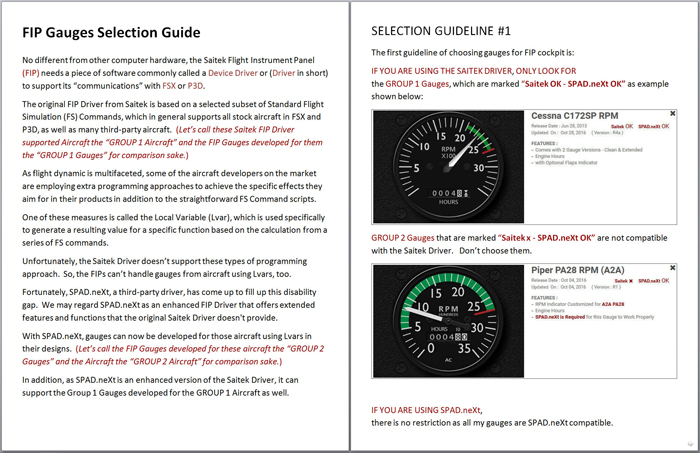
402: FIP Gauges Selection Guide

As my FIP gauges are building up and support more aircraft, I have written a quick Selection Guide to help those who are interested in my Gauges.
fip_selection_guide_03Click here or the image above to read the guide.

371: exe.xml Edit for FSX-SE

Since there is a friend David who is asking for more description to allow FIPs to work in SE, here’s the details:

1)
Type “%AppData%\Microsoft” in File Explorer to go to the “\Roaming\Microsoft” directory.

If you have FSX boxed version on the computer as well, you will see both “FSX” and “FSX-SE” folder under the directory.  Otherwise, you will see “FSX” only.

2)
Click on the “FSX-SE” folder and open the “exe.xml” file.

Note that this is the only file you’ll need to edit to allow FIPs to work in SE.

3)
Inside the file, you will see the following script: Continue reading