347: Shade for P3D ?

From time to time I receive questions from simmers asking if my ShadeShifter utility is compatible with P3D, while they are requesting for the download link.

The answer is “No” because “Shade for FSX” by Mogwaisoft is written specifically for FSX as its name indicates.   And since my ShadeShifter utility was built upon it, it therefore doesn’t apply to the P3D platform indeed.

However, as my Post 107 mentioned, “Shade for FSX” is basically a utility that modifies the sky texture in FSX to achieve a different look and feel.    And since P3D is in general an upgraded version of FSX, we could therefore copy and paste the “sky textures” modified by “Shade for FSX” into P3D.    That will achieve the same result, although this approach lacks the user-friendly interface the utility originally provides.
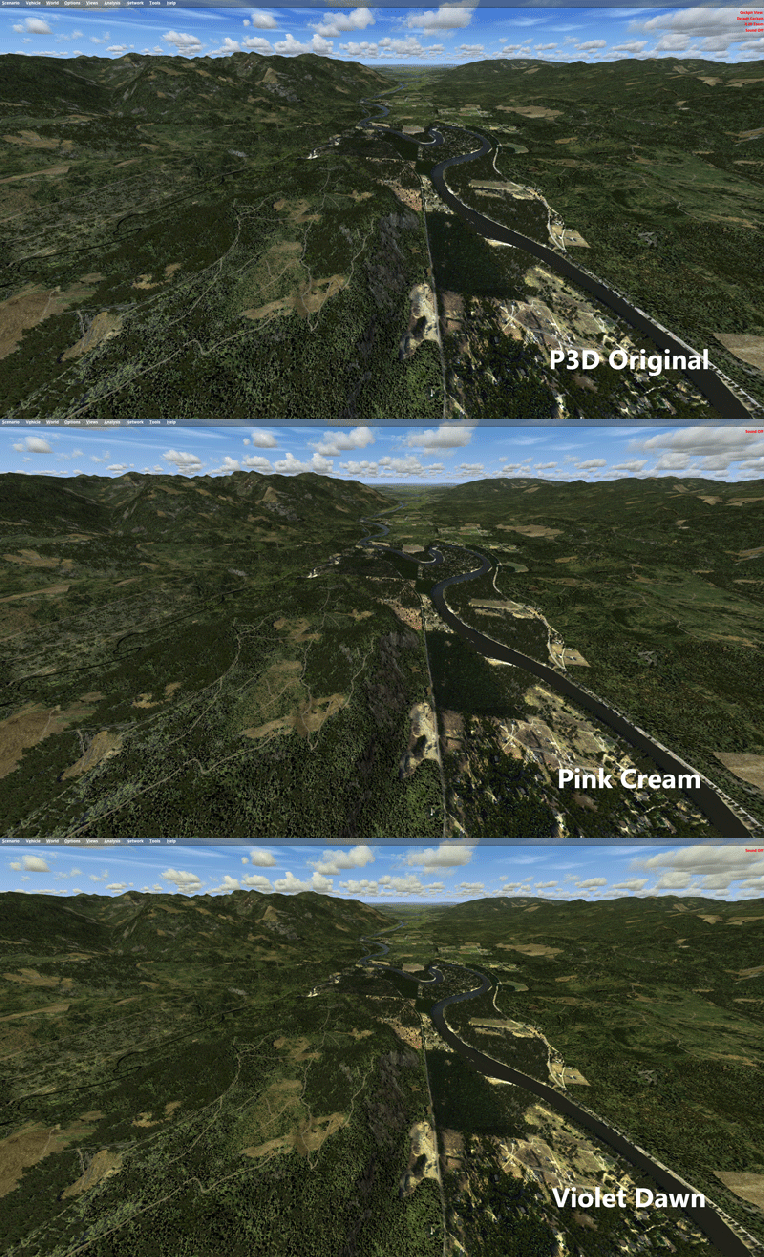
Shade_for_P3D

Perhaps some of you have been doing it already.   For others who have both FSX and P3D and the “Shade for FSX” utility and don’t know how to do it, here’s the instruction: Continue reading

317: Starting Up Networked FIPs Locally

TechLevel02W
Putting FIPs on a networked PC
could reserve system resources for the simulator but the FIPs on the remote computer have to be started manually.

Stefano Cancelli in the Comment section of the story provides a solution by using a Microsoft utility called PSExec.    Via PSExec, the FIPs on the networked PC can now start up automatically when FSX on the local computer launches, and quits when FSX exits.

Very useful tips and followings are the instruction from Stef: Continue reading

314: Connecting FIPs on Networked PC

TechLevel02W
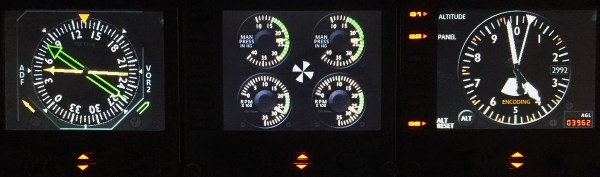
Running Flight Instrument Panels (FIPs) will drag the performance of the simulator to some extent.   To minimize the impacts on some not so high-end PCs, off-loading them to a spare computer isn’t a bad idea.

FIP B_Gauges
Off-loading FIPs to Another Computer Could Minimize Performance Hit to the System.

To those who are “network-phobia”, here’s an example how I put the FIPs (with some help from Ricardo in the first place) to work on a spare computer in my family network. Continue reading

306: The New Saitek Drivers – Part 2: SaiFlightFip.xml

The ability of starting up multiple FIPs in specific order everytime has been a feature requested by almost all FIP users for a long long time.   Saitek has finally implemented it onto its new drivers.   However, this feature may need another tweak in order to function.

After the installation of the new drivers, a file called “SaiFlightFip.xml” containing the current setup information of the FIPs and the gauges should be created accordingly.

Via this “SaiFlightFip.xml”, the start-up order of the multiple gauges can be specified as desired.

The file is supposed to be stored under: Continue reading

305: The New Saitek Drivers – Part 1: Installation

Normally, driver installation should be no more than pointing-and-clicking on the mouse.   Saitek’s new ProFlight drivers, “ProFlight_FSX_Plugin_7_0_40_9_x64_Software” and “Saitek_Pro_Flight_Instrument_Panel_7_0_40_9_x64_Full_pfw”, however, might need a little tweak.

Some friends said to me that the installation of these two drivers was as easy as snapping fingers.   However, there were others telling me the opposite.  To be more exact, their FIPs wouldn’t start up after the installation, even though all the other Saitek gears work as usual.

To me, both statements are true since I experienced both extremes myself over the last few days. Continue reading

215: Turn Off FIP Buttons

TechLevel01W
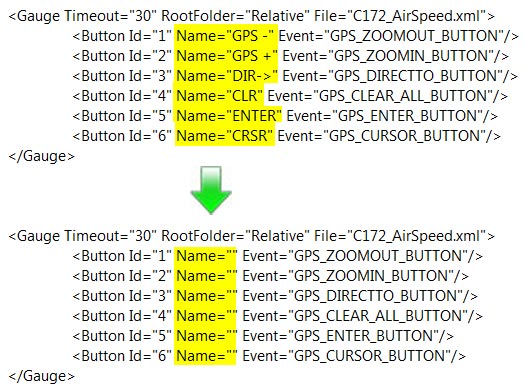
Received a question yesterday asking how to remove the text of the six programmable buttons on the left hand side of the Flight Instrument Panel (FIP) so that one could make use of the whole 320×240 area on the device.

It is easy to achieve by just removing the content of the Name command inside the LogiFlightSimX.xml file under C:\Program Files (x86)\Logitech\FSX Plugin directory as shown below.
(For systems using the older drivers from Saitek, the file is called SaiFlightSimX.xml and it is located under C:\Program Files (x86)\Saitek.)

FIP Botton 01

Continue reading

202: References for Gauge Creation

Many friends ask me where I find information about gauge building.
T210 Gauges RowS1
It’s a typical but a true answer – from the Internet.
Following is a good piece of background reading I often make reference to:

Creating XML Gauges

Truly they are not directly dealing with gauges for Saitek’s FIPs, but the basics and theories are more or less the same.


194: An FIP Display Order Setup Guide

TechLevel02W

I keep receiving questions from friends asking why the display order of FIPs are different every time when they start up FSX.  Followings are two of the most recent examples:

I have built a Saitek cockpit with 6 FIP’s so far.  It works great until I reboot.  It seems the USB ports start in a different sequence on each boot up.

When I added additional FIPs [using a single 10 port USB hub], they no longer would come up in the SaiFlightSimX.xml order.

Evidently, Saitek’s customer support is still lousy even after the product has been marketed for many years.   Anyway, here’s the revised FIP Display Order Setup Guide based on my Posts 28: Flight Instrument Panel Tweak – Part 1 and 118: Loading FIPs in Desired Order, and many replies I gave in various Comments.

Continue reading

187: Adding New Gauges to FIP

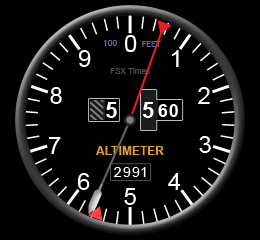
TechLevel02WT210_AltimeterW

Although my previous Post 28, Post 29 and Post 30 already talk about the basics, installation and tweaks for Saitek’s Flight Instrument Panel (FIP), there are still many friends asking for direct instruction on how my Centurion T210 gauges be installed.

So, here is a step-by-by tutorial in which I am using my Altimeter Gauge wide version as an example:

AAA
Download the T210 AlimeterW.rar from the link you received  —  Note that only subscribers of FSX Times are eligible to get my files (Edit: No More Available)

Continue reading