20: Adjust Virtual Cockpit Panrate

There are two ways to adjust virtual cockpit panrate:

Option 1:

* Locate Cameras.cfg under C:\Users\<user name>\AppData\Roaming\Microsoft\FSX directory
* Under CameraDefinition.002 (Virtual Cockpit) section
* Modify the number (degrees per second) of the following two:

  • PitchPanRate=15     // vertical pan rate — I am using 40
  • HeadingPanRate=45     // horizontal pan rate — my setting is 100

* Add the following line right after the two PanRates to improve response time

  • PanAcceleratorTime=0   // zero equals to no delay

Continue reading

19: Less CPU Core is More FPS

If allocating more CPU cores to FSX will bring higher frame-rates sounds logical,  the findings from recent experiments show a different result.

By applying different numbers to the AffinityMask command in fsx.CFG file, frame-rates achieved vary significantly.  And most important, allocating more cores to FSX (including default setting without AffinityMask) doesn’t necessarily mean that framerate will be subsequently higher.

My CPU is an i7 930.  After many testings, setting AffinityMask to:

AffinityMask=20 (00010100; two cores) generates the highest framerate

AffinityMask=84 (01010100; three cores) generates the second best FPS performance

However, setting to use fewer CPU cores will lengthen the time to load all FSX session, especially when a system has installed many complicated add-ons.

Continue reading

18: Redefine ATC Window Size and Position

The window of ATC by default is quite large.  Although it can be resized and repositioned as desired and remains applicable during the flight-simming period, it will revert back to the default situation when FSX is exit.

To change the default size and position of ATC permanently:

  1. Open the default flight (or any flight) in FSX
  2. Activate ATC
  3. Resize and reposition the ATC window as desired
  4. Save the flight as default again
  5. Restart FSX

The ATC window will start with the new size and position just defined from now on.

17: A Great Tool to Sort Scenery Layers

I used to use Orbx’s FTXCentral utility to re-sort scenery layers to proper sequential order.  FTXCentral is good but have a number of cons.

FSTscenery by Steve Greenwood is an extremely helpful alternative if sorting Layer number sequence/priority is the only requirement.   It creates a new version of scenery.CFG with all areas ordered properly.  Gaps in area or layer numbers are also deleted.

The file can be downloaded from Steve’s flight-sim traveler website.

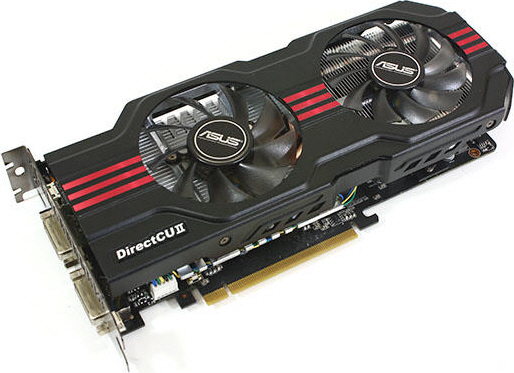
16: fsx.CFG for Nvidia GTX285

Following is the fsx.CFG I used for my GigaByte Nvidia GTX285Nvidia driver used is 8.17.12.5896 with nHancer 64.2.5.9
Average framerate achieve is 39 on my Dell 30-inch.

[JOBSCHEDULER]
AffinityMask=14     // 14 for last 3 cores — No need setting to 15 for 4 cores
[BufferPools]
PoolSize=1000
RejectThreshold=126976    //124Kb = 126976

[GRAPHICS]
ALLOW_SHADER_30=1 // === Important to assist PoolSize ===
HIGHMEMFIX=1 // Fix errors of black squares around lights whilst panning around
STALE_BUFFER_THRESHOLD=1024 // 1024 in KB
[Display]
TEXTURE_BANDWIDTH_MULT=80
UPPER_FRAMERATE_LIMIT=47

WideViewAspect=True
TextureMaxLoad=12 //Use multiples of 3 ONLY but may induce stutters
Continue reading

15: Scenery Library Priority Guidelines

Scenery Library Priority Guidelines

1) Sceneries Grouped by Regions

AF=Africa
AS=Asian
AU=Australia
NL=New Zealand
EU=Europe
NA=North America
CA=Central & South America

2) Arranged as follows (could be in alphabetical order)

Single scenery (mission/airport)
Area-related scenery
Country-related scenery
Region-related scenery (landclass/mesh)
World-wide (landclass/mesh)

3) If a scenery has several components, follow developer’s instruction

If not, follow below:

Continue reading

12: fsx.CFG – Dusk & Dawn Brightness

To adjust the darkness and brightness of dusk and dawn textures, add the following command lines under GRAPHICS section.

[GRAPHICS]
DAY_THRESHOLD=n (default=32768)
NIGHT_THRESHOLD=n (deafult=4096)

Continue reading