726: Set MSFS Priority to High at All Time #2

The “Prio-Process Priority Saver” that I used to set my computer’s CPU priority for MSFS to High as reported in my Post 714 no longer works after my computer’s firmware was upgraded to TPM 2 compatible, which is required for the coming Windows 11.

Instead, I am using Continue reading

725: My Settings Now on Menu

Since my Graphics and nVidia Settings for MSFS are continually changing, instead of writing new Posts for them everytime, corresponding static pages with highlights of changes to them have been created.

In addition, Continue reading

723: My SU5 Tuning #4 – ReShade

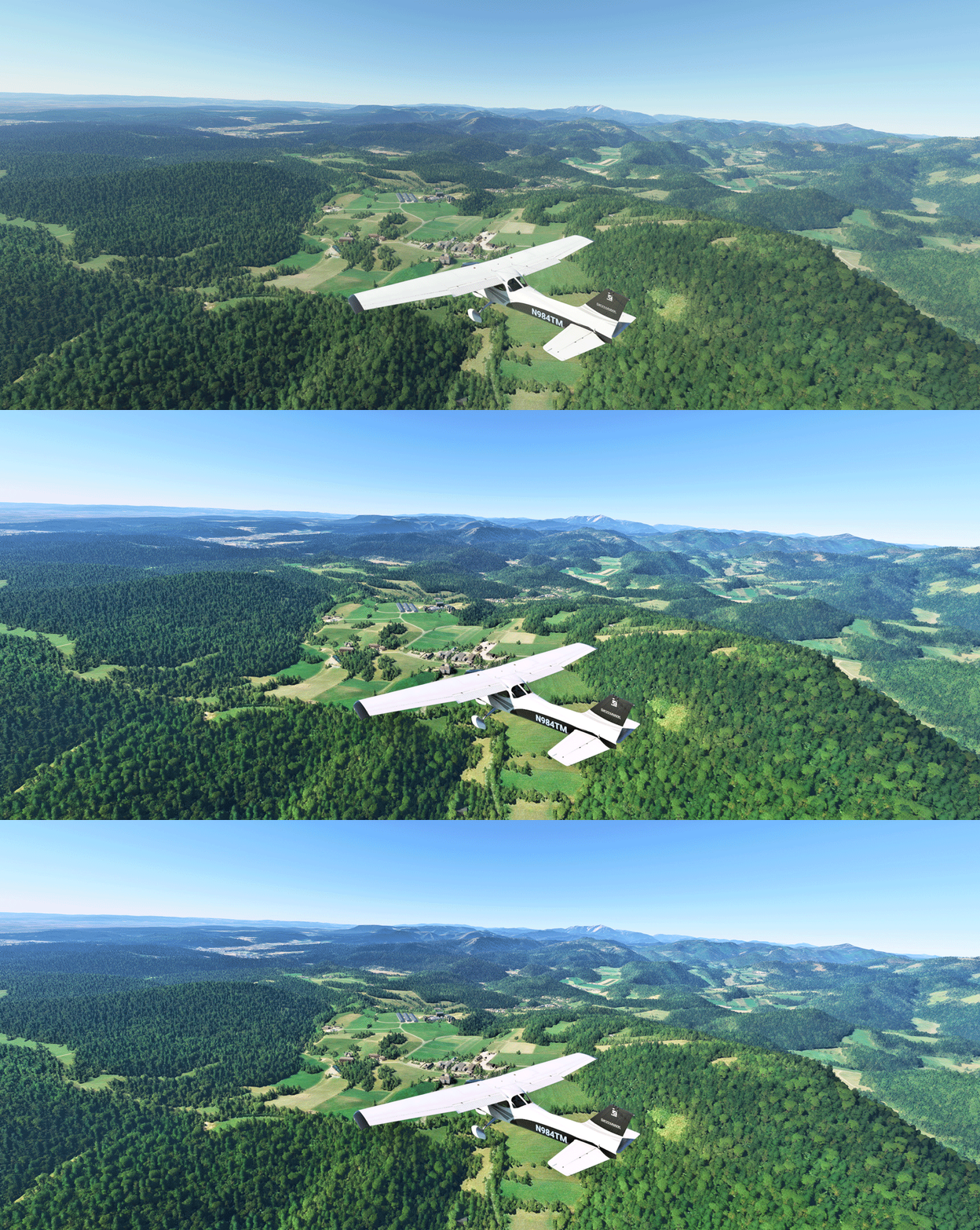
In MSFS, objects in far distance, even on a clear fine day, are too hazy to me.  This is one thing in particular I dislike.  And the Sim Update 5  (SU5) further worsens it as the overall color tone has been washed out, making the scenery looks very dull.

I use ReShade to tune the screen to my preferences.  Click image to enlarge.
Reshade_03L
The app is somewhat like the “Shade for FSX” that changes the atmospheric effects in FSX in the old days, but ReShade for MSFS is more sophisticated.  And most importantly, I don’t see any impact from using it at all.
Continue reading

722: My SU5 Tuning #3 – Menu Bar not Hiding

In MSFS sim update 5 (SU5), the white triangle of the menu bar on top of the screen doesn’t hide itself as it did in the past when you move away the mouse from it.MenuBar  Maybe a bug and probably will be fixed in future updates.
I remember there is a command or a key or something that can hide it but I don’t remember what it exactly is.

However, I do remember there is an addon I downloaded a few months ago that can hide the menu bar.  It’s called No Handle Bar from ither.

I didn’t use it then.   Now a good temporarily fix or maybe for good.

721: My SU5 Tuning #2 – Graphics Settings

With the improvements brought by the MSFS Sim Update 5  (SU5), I can push many graphics rendering options further to the higher ends.

However, I decided to make changes to only four of them in the end because I don’t see any noticeable benefits of changing the others as well.  Therefore, I’d rather keep them as they were so as to grasp more power leveage on hand for the running of the simulator as a whole.

Following are the Graphics Setting updates for my 1080Ti computer (3090 to come later) with the SU5. Continue reading

720: My SU5 Tuning #1 – nVidia Control

Update does not necessarily bring improvements to all aspect.  One noticeable degradation from the recent MSFS Sim Update 5 (SU5) to me is the increased aliasing of the aircraft in external views and many other objects closing by.

As reported in my Post 716 and 717, my MSFS Settings were just finetuned a couple of weeks ago. Except the Power Management I changed to Prefer Maximum Performance in nVidia Control, all others were kept as Default without changes.

With SU5, I have to adjust many items in nVidia Control related to antialiasing accordingly in order to counteract the image degradation. Continue reading

717: CPU Still Crucial in MSFS

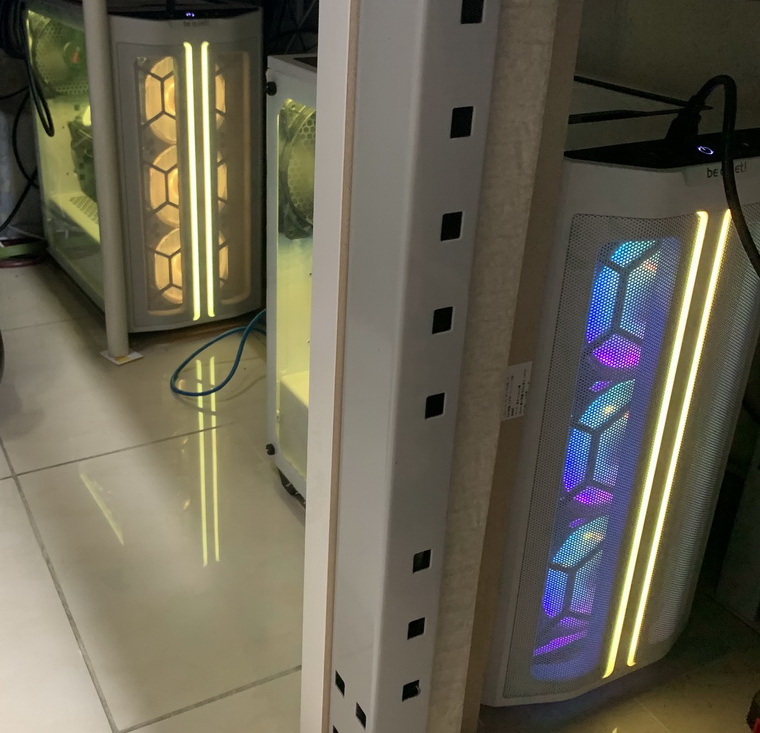
Regarding the Graphics Settings of my two computers in the last Post, some friends asked what the specifications of my two PCs are and questioned if it is justified to compare them side by side since there aren’t much too difference in the comparison chart shown in the post.

Yes, interestingly, except a few items I set higher than the other, most of the settings between the two PCs are identical, even their looks under my desk.
PC_Spec_01_resize Continue reading

716: My Current MSFS Settings

Perhaps you have encountered similar situations before:  the performance of the simulator deterioriates as time goes by.  In the end, you’ll have to tune it again.  I just did about a week ago.

Followings are what I set at present:

nVidia Drivers Reinstalled – As Clean
GeForce Experience – Removed
nVidia Settings Power Management ModePrefer Maximum Performance
Others – Default
Windows Settings Game Mode – ON
Xbox Game Bar & Captures – OFF
Hardware-accelerated GPU scheduling – OFF
CPU Priority FlightSimulator.exe – High via Prio (Post 714)

And the Graphics Settings in MSFS for my two computers: Continue reading

714: Setting MSFS Priority to High at All Time

Probably you have heard many suggestions saying that by increasing the CPU priority of a flight simulator from Normal to High, the program will run more efficently and stably.  I found it’s true on P3D and MSFS in my case.

Instead of manually changing the CPU priority to High everytime when MSFS starts, I am using the following simple app to help save my preferences for good.

It’s called Continue reading