
Some major changes have been done to my last ReShade Settings made in February according to various trials over the last few months: 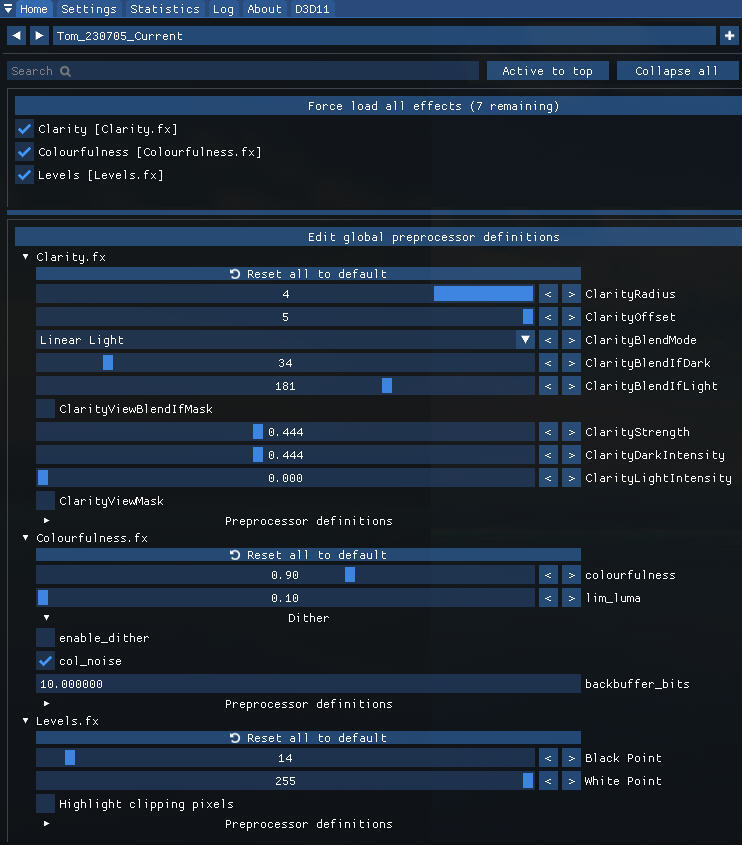
Tint (Sepia.fx) and Vibrance (Vibrance.fx) effects used previously have been removed. Yet, Continue reading
MSFS Graphics
811: My MSFS nVidia Settings 23-0403
After the recent Sim Update 12, some of my nVidia Control settings have been modified a little accordingly.
The Shader Cache Size in the Global 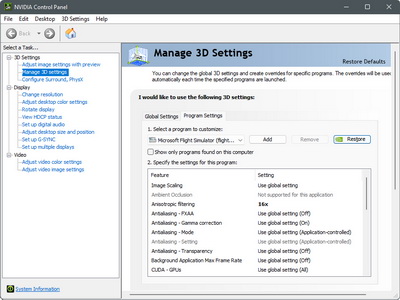 Settings, for one, has been changed to 10GB from the “Driver Default” which is set to 1GB.
The increase is based on an assumption to avoid slow startups, performance issues and stuttering once the cache size is reached.
And second, the Monitor Technology options in both the Global Settings and Program Settings have been changed to “Fixed Refresh“.
As from the description in the nVidia Control panel states, the “G-SYNC Compatible” option is best for demanding games with highly variable FPS. Since MSFS is the only game in my system and I don’t see its FPS fluctuating greatly, I therefore set it to “Fixed”.
The results from both changes seem to bring additional enhancements in smoothness.
You can find the details of my nVidia Settings in full here.
By the way, Continue reading
804: My MSFS ReShape Settings 23-0227
I’ve been using My ReShade Settings for over 18 months satisfactorily. However, after the recent New Zealand update, I found the monitor display a bit more pale than before. I am not sure if the update was the cause. The display looks normal while running other apps.
To counter the paleness, I adjusted my ReShape Settings accordingly as follows:
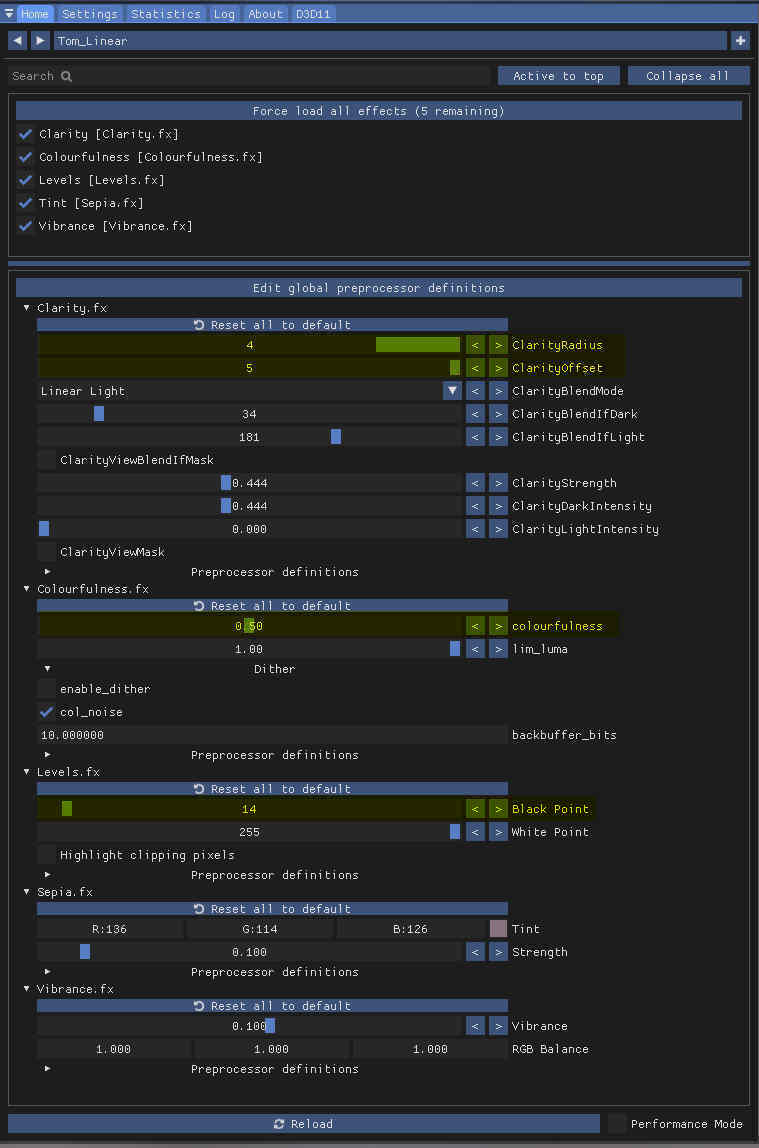
The changes are basically increases to some of the original settings to make it more stand out: Continue reading
803: My MSFS Graphics Settings 23-0225
A friend, DIGFS, recently sent me a comment as follows:
If you have anisotropic filtering enabled in the Nvidia panel, you can disable it completely in the MSFS settings. In addition, since the setting is redundant, this will gain you a little more performance.
Frankly, I noted that recommendation before and tried that already. However, I really didn’t see any gain or difference from the suggestions on my system.
In the past few days, I tested the tweak again. The result is the same on my system but obviously not on DIGFS’s.
After a second thought, I decided to take DIGFS’s suggestion to Turn OFF the Anisotropic Filtering in MSFS Graphics Settings based on the presumption of “less is more”.
 Nothing bad so far.
To see my full Graphics Settings, Continue reading
801: My Graphics Settings 23-0213
Alhough I just updated my MSFS graphics settings not long ago, I find re-turning on V-SYNC with 33% Refresh Rate is, under most circumstances, giving my system a slightly more stable and crispy image performance, especially with the newest 528.49 nVidia driver installed, no matter if it is just psychological.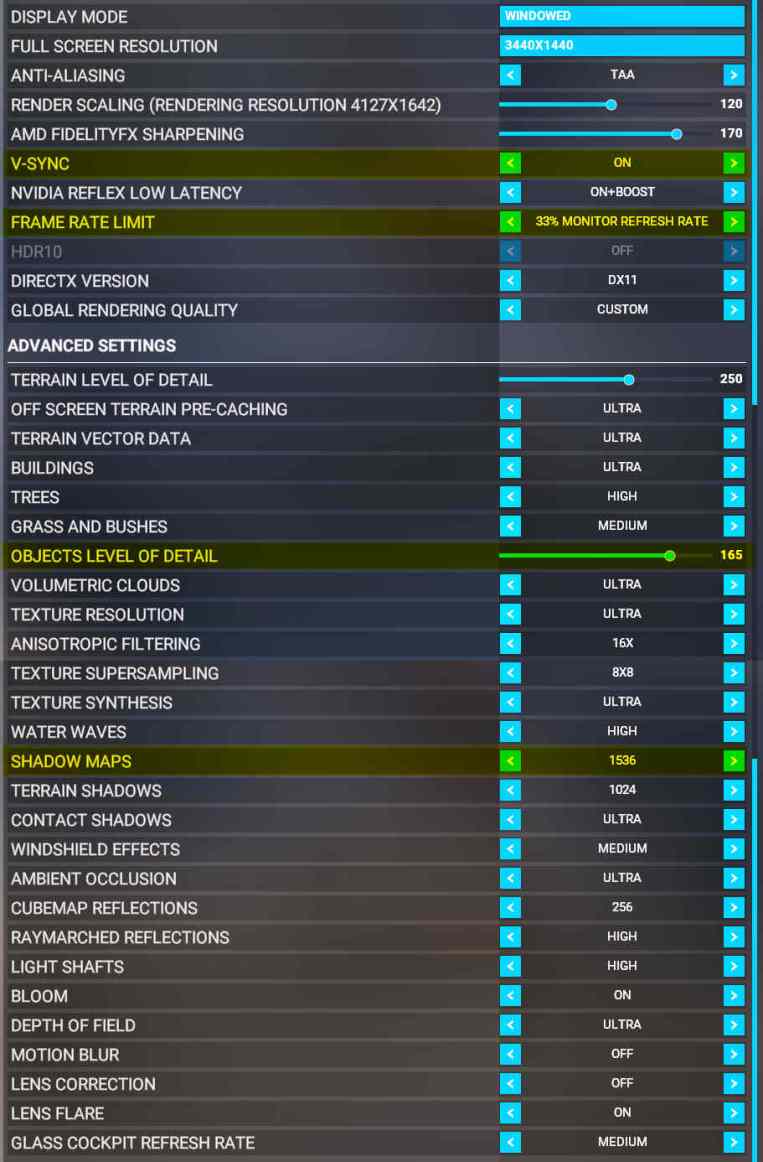 In addition, OBJECTS LEVEL OF DETAIL is reduced from “170” to “165“and SHADOW MAPS increased from “1024” to “1536” accordingly. The rest remains unchanged.
Your mileage may vary. Try for the best values yourself. Continue reading
799: My Graphics Settings Updated
Here’s my new MSFS graphics settings since I updated them nearly 18 months ago.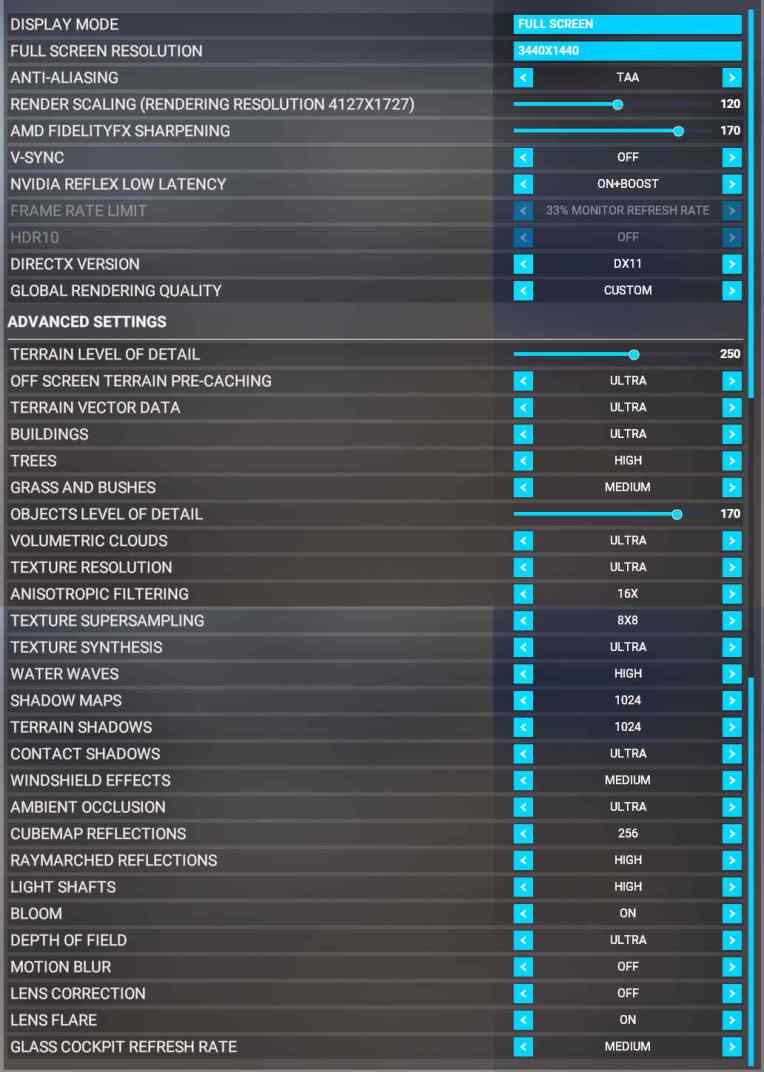 In general, the two distinct changes I made are:
1) “RENDER SCALING” which I increased it from “95” to “120“. This gives my system noticeable graphics enhancements. Highly recommend to set it over 100 if your system supports it.
2) “AMD FIDELITYFX SHARPENING” which I decreased it from “200” to “170“. This counteracts the impact caused by the increase of Render Scaling and brings no performance hit to the system overall.
My graphics card is still the GeForce RTX 3080Ti. Diver version is the newest 528.24. You can see My nVidia Settings here.
You mileage may vary.
—
—
 FS Times