

Rebuilding the shader cache of the simulator helps fix problems suddenly coming up without a proper cause. The reasons explained in my Post 58: Rebuild FSX Shader Cache for FSX. It is applicable to P3D as well.
There are friends asking if it is possible to automate the deletion process right before the running of FSX or P3D, when needed.
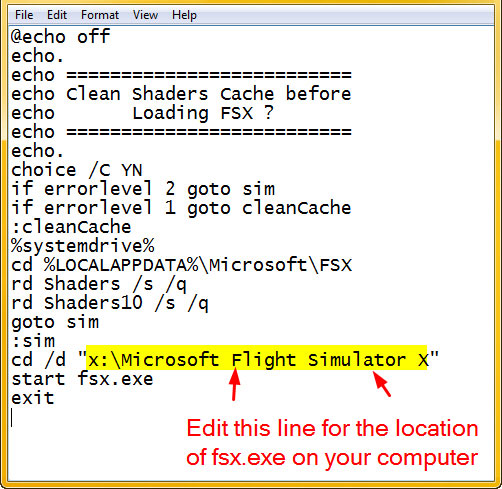
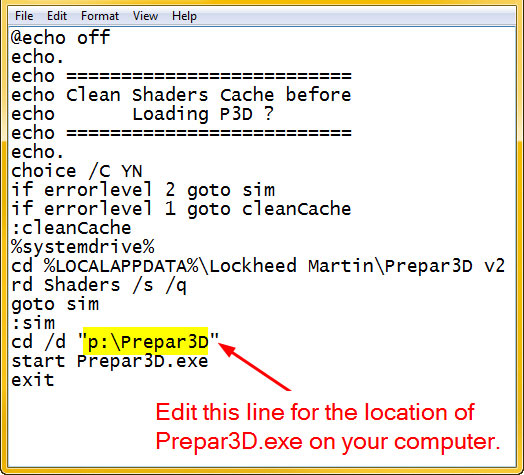
Surely it is possible. We can create a batch file called ShaderCleanerFSX.bat for FSX or ShaderCleanerP3D.bat for P3D, for example, using the scripts below.
Or simply click on either image to download both pre-written scripts for FSX and P3D.
For FSX
ShaderCleanerFSX.bat
For P3D
ShaderCleanerP3D.bat
NOTE
the download files are in text format and named
ShaderCleanerFSX.bat.txt &
ShaderCleanerP3D.bat.txt
This is done so on purpose to prevent accidental running of the files before the changes made for the correct location of fsx.exe or Prepar3D.exe.
After the changes and savings of the files, rename the files as follows:
ShaderCleanerFSX.bat.txt –> ShaderCleanerFSX.bat
ShaderCleanerP3D.bat.txt –> ShaderCleanerP3D.bat
This will turn them into runnable batch files, which, when needed, will delete the Shader Cache folder right before the loading of the simulator.


Hi Tom
Just came across this after the need to delete shaders in FSX, works great, thanks!
Now that I use P3Dv3 too I thought I’d try this tweak with this sim as well after changing what i think the important text, I’m renaming it from .txt to just .bat once finished but its still not launching as my FSX shader bat file does?? I used to do batch files myself back in my DOS 6 days days but mostly forgotten the art of it now :)
This is my P3Dv3 batch file to give shader removal option …
@echo off
echo.
echo ==========================
echo Clean Shaders Cache before
echo Loading P3D ?
echo ==========================
echo.
choice /C YN
if errorlevel 2 goto sim
if errorlevel 1 goto cleanCache
:cleanCache
%systemdrive%
cd %LOCALAPPDATA%\Lockheed Martin\Prepar3D v3
rd Shaders /s /q
rd Shaders10 /s /q
goto sim
:sim
cd /d “I:\Lockheed Martin\Prepar3D v3\” start Prepar3D.exe
exit
Hope you can help
Thanks
LikeLike
Hi Colin,
Try break a new line at “start Prepar3D.exe” from the last second line. See if that works.
Tom
LikeLike
Thanks Tom, it was something else but all working fine now.
Colin
LikeLike
Glad to hear that.
Tom
LikeLike
Thanks for this batch. Your blog helps me alot. Reece
LikeLike
You’re welcome.
Tom
LikeLike
Hi Tom!
Thanks to you for your really great hints and tweaks. I’ve tried this and it works perfectly well on my system.
For all the lazy guys like me :-): this is the bat file I’ve edited making the ShaderCleaner doing its job in automatic- mode (automatic cleaning of shader cache, without the choice Y/N) and it works reliable.
@echo off
echo.
echo ==========================
echo Clean Shaders Cache before
echo Loading FSX ?
echo ==========================
echo.
:cleanCache
%systemdrive%
cd %LOCALAPPDATA%\Microsoft\FSX
rd Shaders /s /q
rd Shaders10 /s /q
goto sim
:sim
cd /d “F:\Microsoft Flight Simulator X” —–> “F” is named for MY SSD Drive
start fsx.exe
exit
Best regards to you,
Klaus from Germany
LikeLike
Hi Klaus, You could further reduce it as follows if you don’t need the choice option in the beginning.
@echo off
%systemdrive%
cd %LOCALAPPDATA%\Microsoft\FSX
rd Shaders /s /q
rd Shaders10 /s /q
cd /d “F:\Microsoft Flight Simulator X” —–> “F” is named for MY SSD Drive
start fsx.exe
exit
LikeLike
Thank you Tom.
I think the last “goto :sim” just after the last rd command was not necessary.
LikeLike
Haha… you are right feno. It doesn’t hurt anyway.
Tom
LikeLike
Where are the download files located?….
Do you run the batch file from the desktop?
…thanks, John H.
LikeLike
Click on the image to download the files.
You can put it on the deskop or anywhere you like.
LikeLike
Thanks Tom…keep up the good work…John H.
LikeLike
;)
LikeLike