
With the addition of the new A36 and the coming B58 Gauge Series, a friend Steve (and others) who asks:
After installation, what’s the prefered method for choosing between the A36 gauges and the C172 gauges, when going back and forth? Will the C172 gauges remain the default, and then you just scroll through the gauge choices on each individual gauge using the FIP up/down arrows to bring up the A36 gauges?
Here’s the solution:
The switching in the video is carried out by the GaugeSwitcher utility. It can quickly perform gauge switching among Gauge Profiles that are created by the associated utility GaugeCreator. 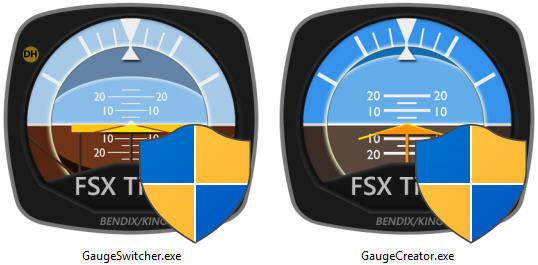
The utility suite is under fine-tuning phase and I am working on a user guide for it as well.
Even though the using of the GaugeSwitcher is no more than clicking on a drop down list and choosing the Gauge Profile we want,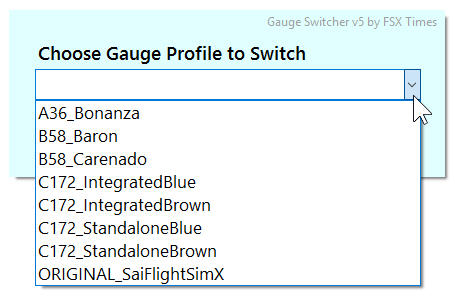 the concept of its operation and some minimal user-preparation works and are still required.
The Bad news:
Anyone interested in this utility might have to pay a few bucks. But a portion of it will be donated to the Doctors without Borders (MSF).
The Good news:
All users who own any Full Set of my Paid Gauges will receive a copy of the utility for free by end of the month.
 FS Times
Great just got better! Thanks Tom!
LikeLike
Thanks Dean.
Glad to hear back from you again.
Tom
LikeLike
Hi Tom,
I have found a problem with the Gauge Switcher for some of us with Windows 7 x64. I believe your utility works by overwriting the SaiFlight Fip.xml with the chosen profile to switch gauges. However my SaiFlightFip.xml is NOT in the C:\ProgramFiles (x86)\Saitek\ProFlight FSX Plugin\, BUT instead in C:\Users\Jack\AppData\Local\VirtualStore\Program Files (x86)\Saitek\Proflight FSX Plugin\.
When changing profiles,the result is the gauges all revert to the Saitek Serial number screen. The selectable gauges DO CHANGE to the correct profile so they can be manually selected, however.
Can you whip up a modified Gauge Switcher to look in the correct folder?
P.S. I also am getting a “Unhandled exception…” with the Gauge Creator. Says it “Could not find file ‘FIP_Gauge_List_Temp.txt. I’ve just been manually creating profiles.
Thanks, Jack
LikeLike
Hi Jack,
Are you using the latest drivers as I was having the SaiFlightFip.xml in the similar location you mentioned. But after the new versions, the file moves to the location I programmed. Anyway, I’ll have it checked again. Also, pls let me know what driver versions are you using?
Will look into the second issue as well? Do you find the problem from the last version or the version just updated?
Tom
LikeLike
Tom,
This was all AFTER a fresh install of latest drivers…
Pro_Flight_Instrument_Panel_7_0_47_1_x64_Software.exe
Pro_Flight_Instrument_Panel_7_0_47_1_x64Drivers.exe
And yes, this was after I saw your post and downloaded your Gauge Switcher/Creator again with the link you gave me
I remember a discussion about some Windows 7 users saying the SaiFlightFip.xml could be in either location.
Jack
LikeLike
Tom,
What I said about the Gauge Creator…
“P.S. I also am getting a “Unhandled exception…” with the Gauge Creator. Says it “Could not find file ‘FIP_Gauge_List_Temp.txt. I’ve just been manually creating profiles.”
I think it was crashing because the “FIP_Gauge_List.txt” was empty at the time. After I manually added some profiles, it doesn’t crash anymore. However it probably is still affected by wrong directory issue as with the Gauge Switcher.
Jack
LikeLike
excellent utility. No more scrolling through for each FIP each time I change to a different aircraft (or if I simply want a different profile for the same aircrat). thanks Tom!
LikeLike
I’m so glad to hear that.
Tom
LikeLike
This is just going to be a wonderful utility. Now a lot of Copy-Paste action will just vanish !
Thank you!
LikeLike
Well, there are still some cut-and-paste works. ;)
Tom
LikeLike
Great looking utility Tom. It will help me immensely.
Thanks
Rick S.
LikeLike
You’re welcome Rick. You will surely get a copy when it’s ready.
Tom
LikeLike