
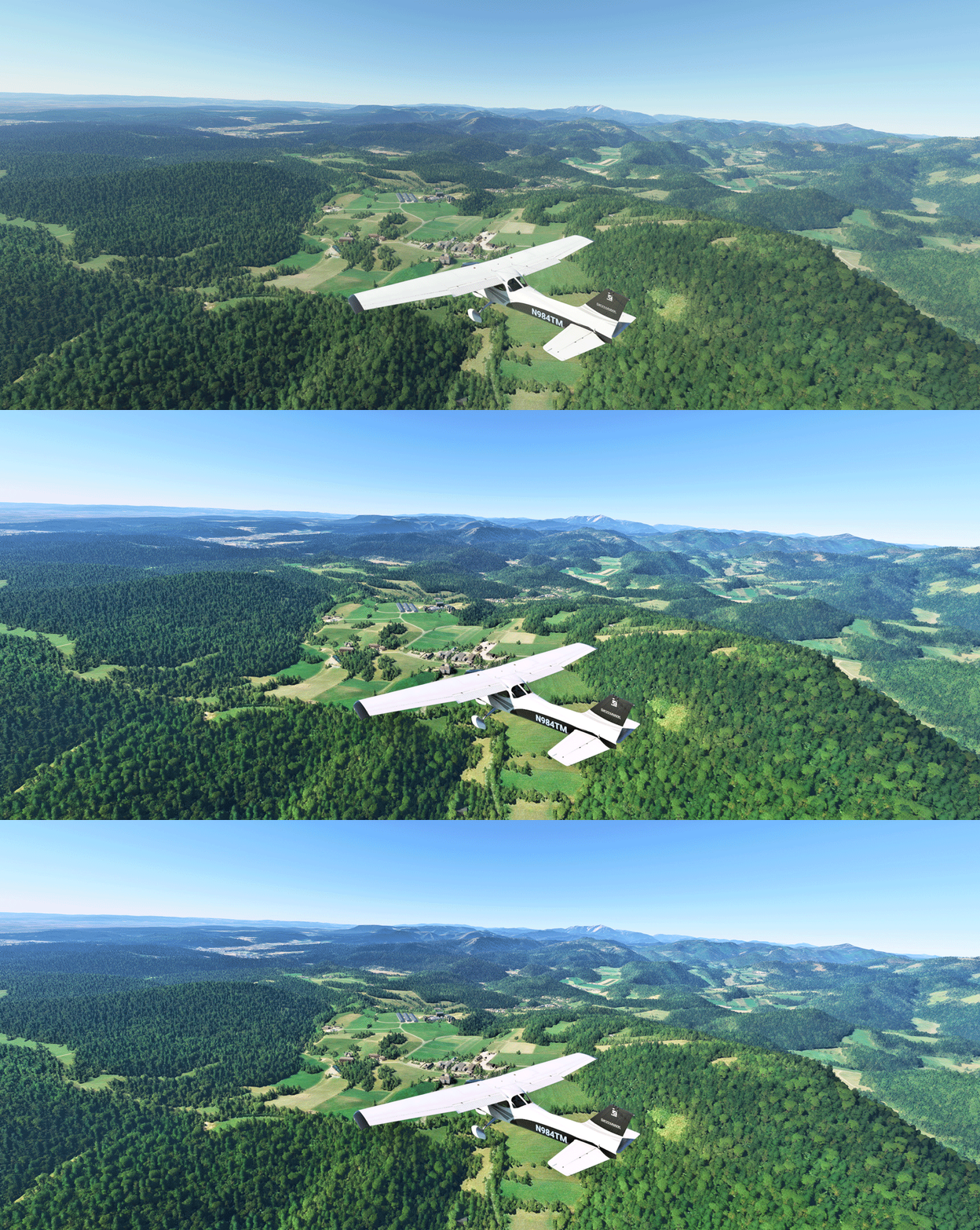
In MSFS, objects in far distance, even on a clear fine day, are too hazy to me. This is one thing in particular I dislike. And the Sim Update 5 (SU5) further worsens it as the overall color tone has been washed out, making the scenery looks very dull.
I use ReShade to tune the screen to my preferences. Click image to enlarge.
The app is somewhat like the “Shade for FSX” that changes the atmospheric effects in FSX in the old days, but ReShade for MSFS is more sophisticated. And most importantly, I don’t see any impact from using it at all.
I would say the free app is a must have addon for MSFS.
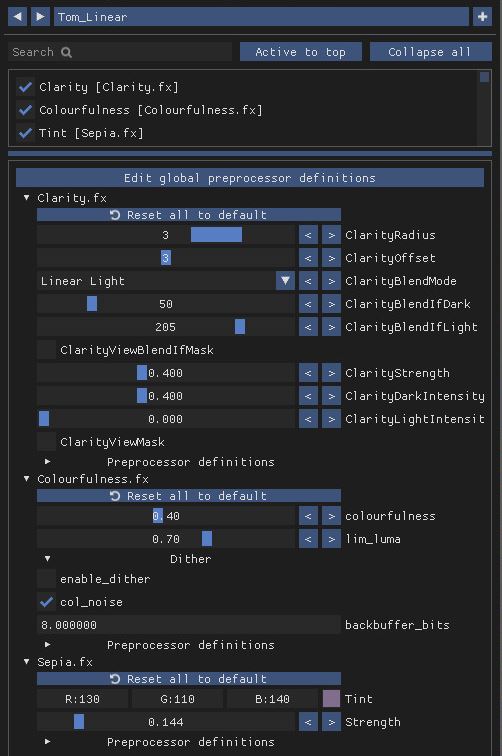
And among all the plugins coming with the app, I found Clarity, Colourfulness and Tint are the three (3) most effective for my system.
I am quite happy with my settings as they give me a very pretty vivid scenery. 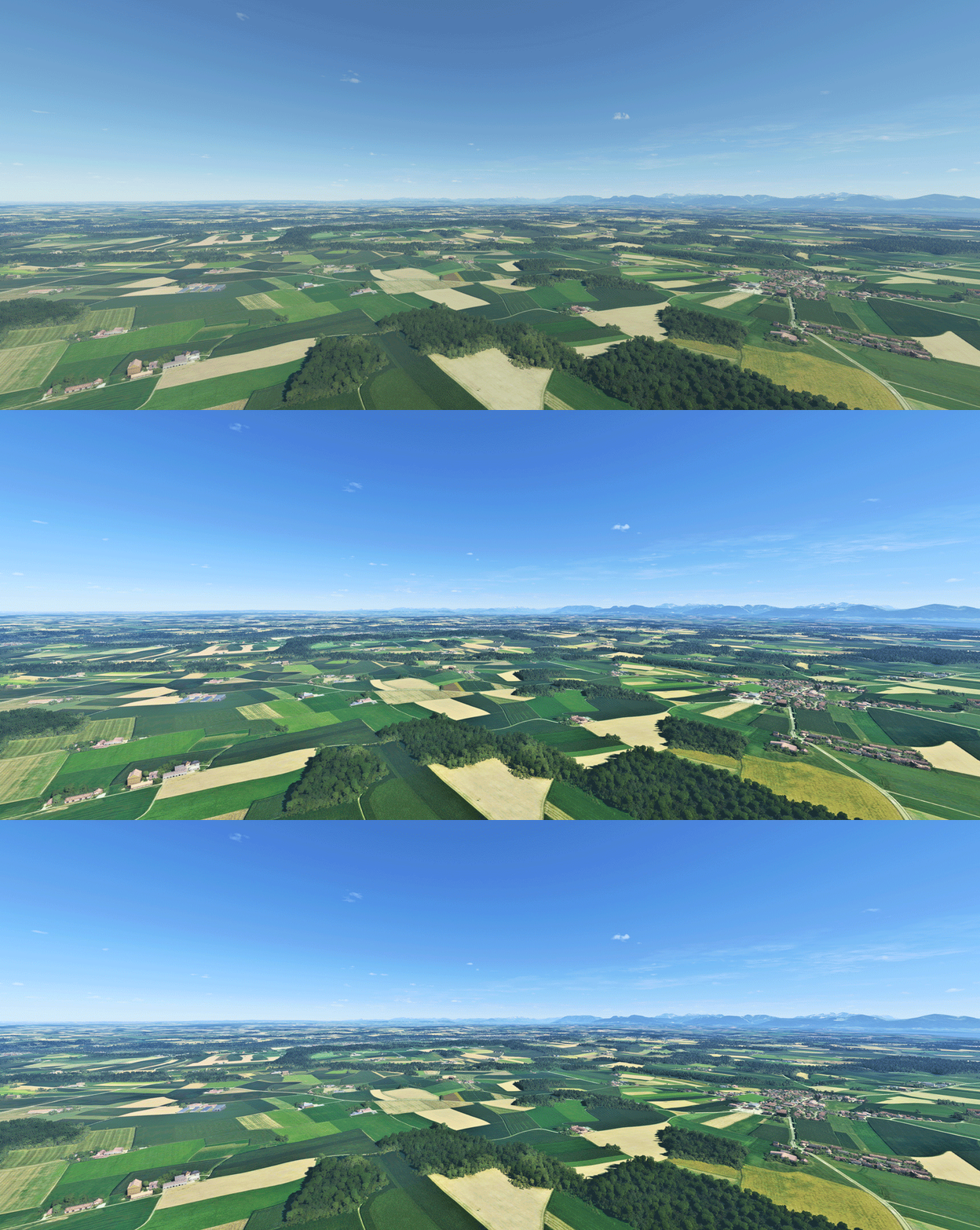 Surely the settings are not yet final. They will be tuned as necessary.
If you are new to ReShade, here’s a quick guide to help you install the app.
1.) Run ReShade after you download it from: https://reshade.me
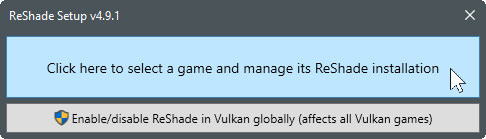
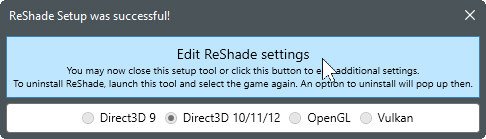
2.) Click the blue area to proceed
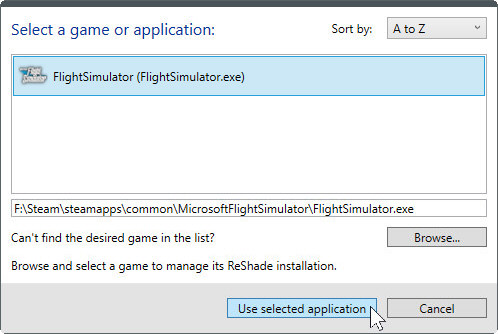
3.) Select FlightSimulator.exe of course
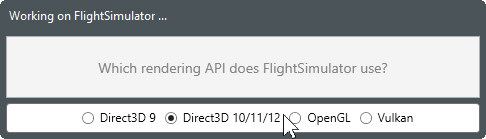
4.) Choose Direct3D 10/11/12
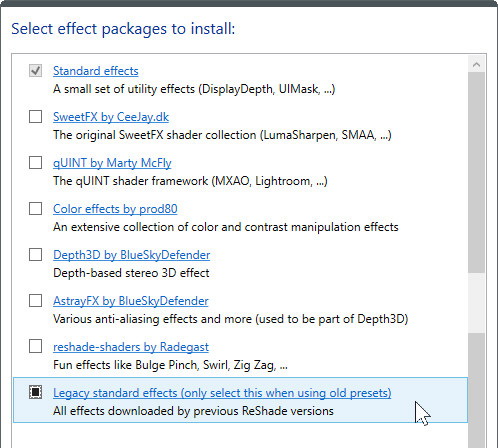
5.) Deselect all others but the two (2) as shown below
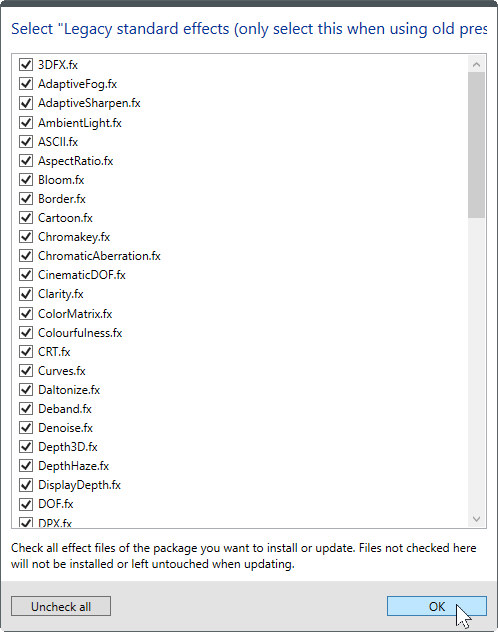
6.) Click OK to proceed even though we don’t need them all
7.) You can close the app or click the Blue area to edit ReShade Settings
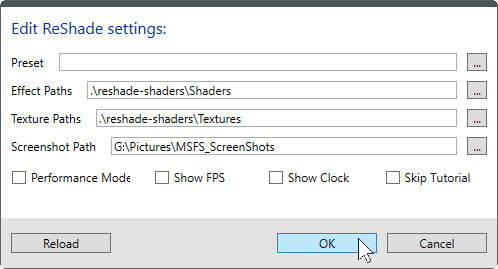
8.) Specify Preset and Screenshot Path or just leave them empty for now
ReShade will load itself with MSFS automatically. Just follow the instructions from the app and use the [Home] key on the keyboard to call up or hide it anytime you like.
You can test out different effects yourself or follow my settings above.
Or you can simply download my settings here and put the *.ini file in the same folder where your FlightSimulator.exe is
( e.g. X:\Steam\steamapps\common\MicrosoftFlightSimulator )
Do note that the resulting effect is monitor-dependent, meaning the settings work nicely on my monitor may not necessarily look the same on yours because the specs of our monitors and settings are possibly different.
For example, my monitor settings for my first PC doesn’t apply well to the 4K TV on my second computer.
Also, our preferences toward colors could be different, too.
Anyway, it won’t hurt to have a sample settings to start with yours.
Lastly, if you have a good Reshade setting, feel free to send it to me to share with others here.
 FS Times
Does this also work with P3D or FSX?
LikeLike
Probably, better try for yourself.
LikeLike
No problem Tom, just curious if you had any previous experience with it.
LikeLike
No. Just MSFS with it. ;)
Tom
LikeLike
Hi Tom,
Thanks for the tip :)
Not possible to use ReShade with the Store version ?
Regards,
Nicolas.
LikeLike
I don’t know, Nicolas.
I have Steam version only. I guess it’s no harm to try it on your Store version.
Tom
LikeLike
Hummm flightsimulator.exe of the store version is not listed and not accessible manually (access refused).
LikeLike
Sorry to hear that. Too bad.
Tom
LikeLike