329: AffinityMask=256

AffinityMask is the highest searched subject in my blog.   There are many recommended values over the Internet and I’ve tried and explored many of the suggestions (see my various Posts here) for both my FSX and P3D systems.

Since early last year, I’ve been using  AffinityMask=256  in my P3D setup.

I know the Binary of 255 equals to 11111111, which represents the using of all 8 cores on a Quad-core 8-Thread CPU when it is assigned for the AffinityMask.

And the Binary value of 256 equals to Continue reading

324: Make Your Aircraft Invisible

It’s still true that I mainly flightsim in one of the following cockpit views reported in my Post 181.

1. Landing/Takeoff — showing the hood from the pilot seat on the left
2. Cruising — showing outside scenery only
3. Normal Cockpit — used only when FIPs are turned off

To implement the Cruising View, in particular, I used to disable the 2D-Cockpit in the camera.cfg first, and then create a specific CameraDefinition for it.    Recently, I found Prepar3D has a hidden feature which makes this customization process totally unnecessary as shown in the video below:

Two steps only are required: Continue reading

318: Another Network FIPs Start Up Approach

In response to the last article regarding Starting up Networked FIPs Locally, Michael Basler recommends another simpler and even more versatile approach.   Here’s the note from Michael:

==========

I start the simulator Continue reading

317: Starting Up Networked FIPs Locally

TechLevel02W
Putting FIPs on a networked PC
could reserve system resources for the simulator but the FIPs on the remote computer have to be started manually.

Stefano Cancelli in the Comment section of the story provides a solution by using a Microsoft utility called PSExec.    Via PSExec, the FIPs on the networked PC can now start up automatically when FSX on the local computer launches, and quits when FSX exits.

Very useful tips and followings are the instruction from Stef: Continue reading

315: A Temp Solution to Fly P3Dv3 with Existing Addons

TechLevel01W
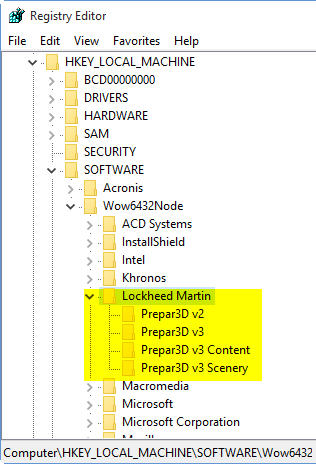
The new Prepar3D Version 3 (P3Dv3) takes the same approach P3Dv3_00as its predecessors to include the version number in its system registry (from Prepar3D to Prepar3D v2 to Prepar3D v3).   Making many addons have to rebuild a new installer in order to recognize the change, even when the new P3Dv3 is installed onto the same drive and same program directory as the previous version.
For those who wouldn’t want to wait for the release of new compatible installers, here’s a quick temporary solution to run the new P3Dv3 with existing addons from earlier versions.

I am using Orbx’s addon as an example.   And the region used in P3Dv2 is set to FTX Global Hybrid.

My Prepar3D version 2 is installed on P:\Prepar3D, and version 3 on P:\Prepar3Dv3.
Continue reading

314: Connecting FIPs on Networked PC

TechLevel02W
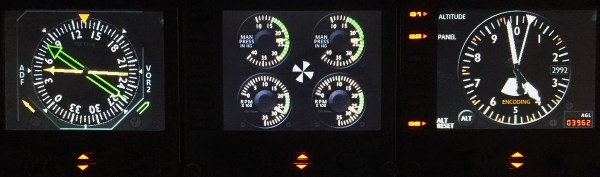
Running Flight Instrument Panels (FIPs) will drag the performance of the simulator to some extent.   To minimize the impacts on some not so high-end PCs, off-loading them to a spare computer isn’t a bad idea.

FIP B_Gauges
Off-loading FIPs to Another Computer Could Minimize Performance Hit to the System.

To those who are “network-phobia”, here’s an example how I put the FIPs (with some help from Ricardo in the first place) to work on a spare computer in my family network. Continue reading

313: A Reply to Stutter Quick Fix

Stutters are annoying.  A friend asked if there is any quick fix to stutters since he has fed up with the endless tuning of his system.  Yes, just turn off all the traffic and you will see instant improvement.   Actually, many videos found on the Internet are taking this trade-off approach to render a smooth screen display.

The fix is quick but certainly not a perfect solution.


303: Enhance Orbx Product Report Readability

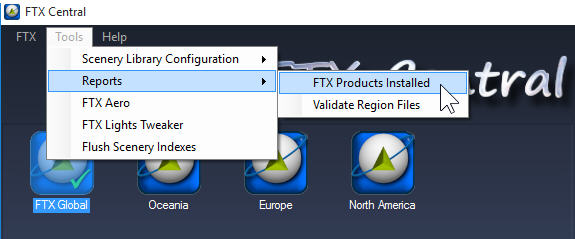
The Product Report generated via FTX Central is getting harder and harder to read when the list of the installed scenery is building up.  Installed-Central

To enhance readability, Continue reading

296: Installing FSX from HDD

TechLevel01W
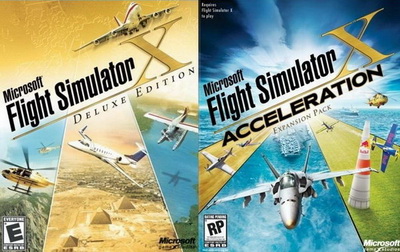
Even though you are probably not one of us who tend to rebuild FSX for this and that reasons from time to time, putting FSX installation contents onto a hard drive and running from there not only FSX Deluxe+Acceleration_400improves convenience but also significantly reduces processing time required.

The conversion is simple.   Just copy everything from the installation discs to any folder (e.g. FSX Deluxe Edition and FSX Acceleration) on your specified hard drive.

But do remember to copy the discs in their installation order, and answer [NO] when prompt to overwrite files already copied to the hard drive earlier.

In addition, Continue reading