41: Configuration Fits for ALL #1 – The Concept

I usually flightsim only in areas with third-party sceneries installed.  FSX, however, performs vastly different due to scenery’s complexity and technology used.

Like many others, I’ve been searching for and experimenting tweaks and suggestions, aiming to get the best FSX result.

Unfortunately, One Setting that Fits for All simply doesn’t exist.    My Best FSX Setup may not apply to others at all, for example.

Inspired by Orbx’s FTX scenery approach, I started reconfiguring my FSX system into different flying zones about a year ago.  Tweaks and settings, therefore, are specifically customized to target the best result for a particular scenery or flying zone under the same hardware setup.

Nevertheless, the concept is pretty simple: Continue reading
38: My Ultimate Cockpit Views

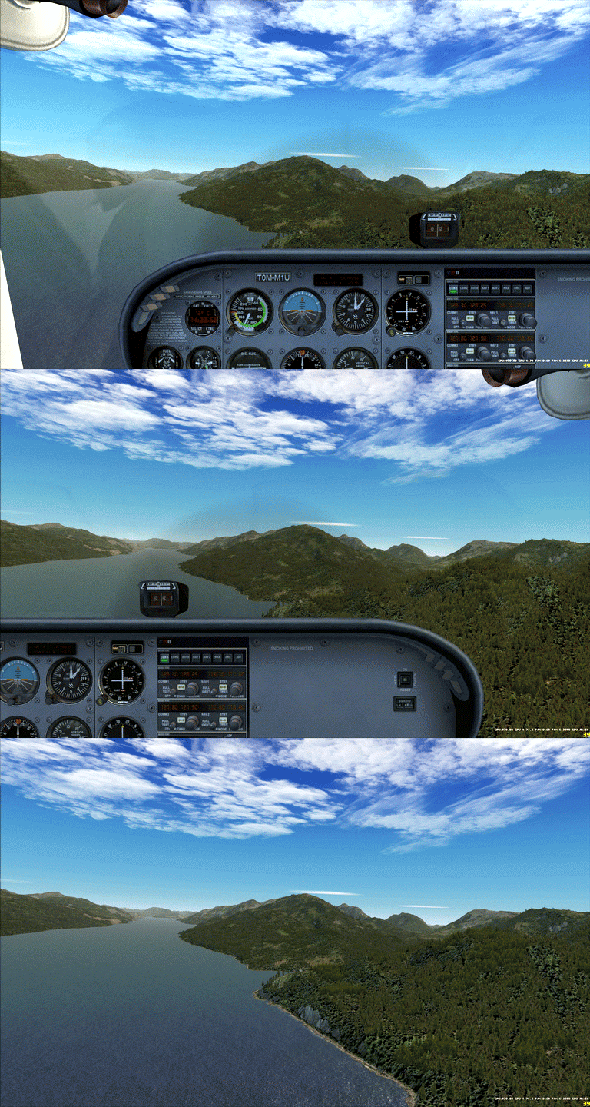
Aircrafts in FSX comes with many views (or cameras) and they are set with different zoom levels.  They are quite troublesome since I only want three of them to view from cockpit:

  1. View from the pilot seat on the left
  2. View from the passenger seat on the right
  3. View from the cockipt without panels

Moreover, I need these views to start with the same zoom level and/or eye position, so that the scenery in front stays unchanged when views are cycled through.

Always start with the same zoom level and keep scenery background remain in position

Above is the cockpit view effect I achieved on the Cessna 172 through the tweaks of Continue reading

37: Clean Install Display Driver

Display driver plays an important part in Flight Simulator.   How to install it or uninstall it will impact FSX’s performance and stability, especially when switching from NVIDIA to ATI or ATI to NVIDIA.

It is widely known that even after a program or a driver is uninstalled, many “tails” of it will still remain in the system.  It is therefore necessary to ensure that a display driver will only be installed or updated onto a clean environment at all time.

Following is how I update the ATI display driver from 11.3 to 11.4   Continue reading

36: Add New Views

The earlier post Remove Unwanted Views talks about getting rid of some views (cameras) that one doesn’t need.  This one talks about adding new views (cameras).

My system has a few Pro Flight Instrument Panels (FIPs); therefore, I want a full scenery monitor display without showing the 2D or 3D cockpit.

Although this can simply be achieved by pressing W to turn off associated panels in 2D cockpit view, the cockpit will appear again when eyepoints are panning to the right or to the left.

To address the issue, a number of options can be considered.

Continue reading

35: fsx.CFG – AverageFrameRate

fsx.CFG provides 3 sets of information about normal and slew flight.  The information will be displayed and cycled when SHIFT-Z is pressed.

To simplify and maximize the display, adjustments as shown below can be used to group the 3 sets of information into a single one for each type.
Continue reading

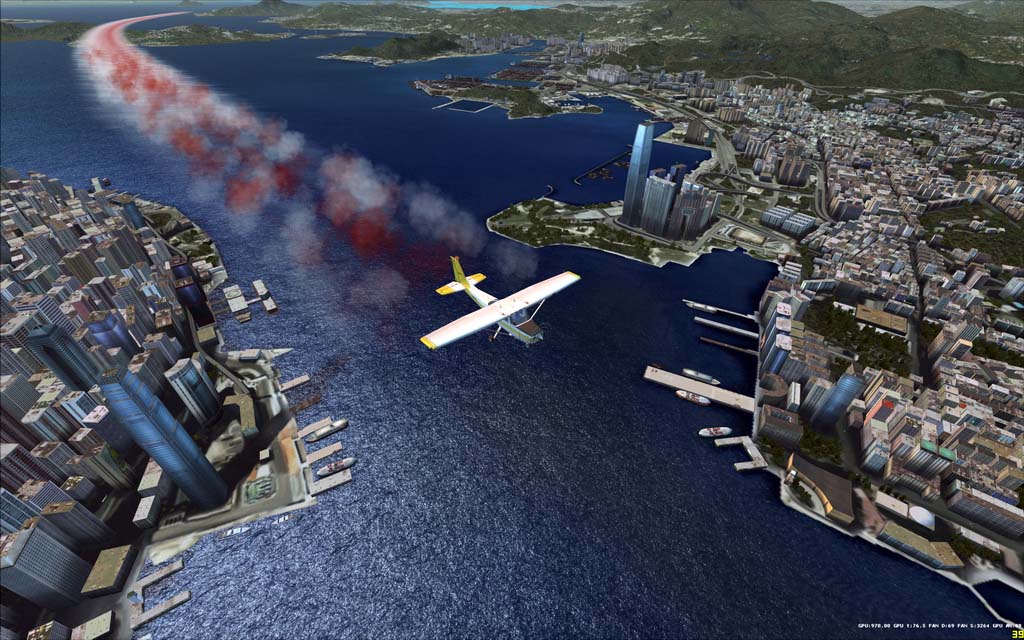
34: Smoke Gets in Your Plane

In FSX, only the Extra300, FA-18 and P51 aircrafts are pre-installed with an exhaust smoke system which can be activated by pressing the “I” key on the keyboard.

Customized Red and White Smoke System

To add the smoke effect to other aircrafts, insert the following lines at the end of the aircraft.cfg of your choice under SimObjects folder:

Continue reading

27: fsx.CFG – Texture_Bandwidth_Mult=800

TEXTURE_BANDWIDTH_MULT under [Display] section of fsx.CFG controls video hardware’s texture transfer rate.

Default value is 40.

If a graphics card comes with 1GB or even 2GB video memory, you may try increasing the value for a smoother display quality.

Continue reading

26: Remove Unwanted Views

In FSX, there are many views one can choose from and cycle through by pressing S (next category) and A (next view in category) on the keyboard, including Cockpit (2D), Virtual Cockpit (3D), Locked Spot, FlyBy, Top-Down, etc.   Often there are views that we seldom or never use, however.

Steps below will get rid some of them for good.

Option 1:
1) Locate Cameras.cfg (x:\Users\<user>\AppData\Roaming\Microsoft\FSX) and make a backup of it
2) Open the file and you will find 11 Camera Definition sectons inside
3) Just delete the Camera Definition section(s) you don’t need
4) Save and Exit

Continue reading

24: Reduce Autogen File Size

Autogen objects are defined by default.xml under FSX’s Autogen folder.   Many third-party sceneries during installation will add new objects to the file, making it bigger and bigger.

Here’s a quick and easy way to reduce the size of it and bring some improvements, especially to low- to mid-end computers.

1) Locate default.xml in the Autogen folder of the Microsoft Flight Simulator X directory (x:\Microsoft Flight Simulator X\Autogen)

2) Backup the file first for safety sake

3) Open the file with Notepad

Continue reading