137: Flying Zone Switcher Preview

Updated: Dec-22,2011
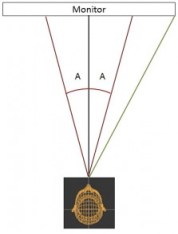
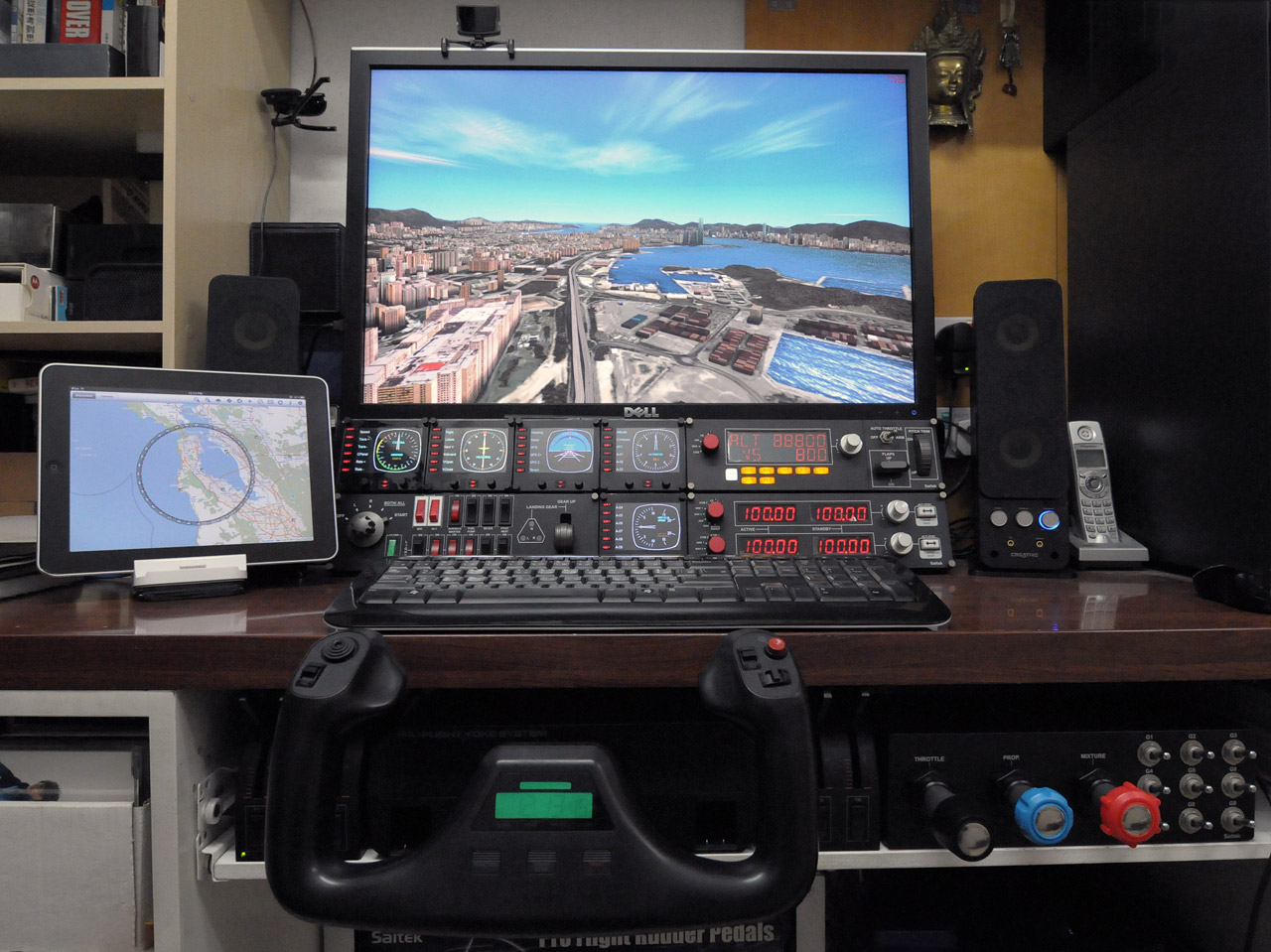
Lately, I have been working on an enhanced user interface for my Flying Zones approach.   Its preliminary design is shown at the end of this post.

In addition to switching flying zones, targeted features will also include the loading of corresponding missions and FSDiscover data.  And in particular, it will eliminate the need of FTX Central when switching to Orbx’s scenery areas.

The heart of the project includes quite some customizations to my FSX setup.   When it is completed, I will think of a way to share the concept with others.

Until 2012, this probably is the last post of the year.

Wish you all a Merry Christmas and a Happy New Year !
Continue reading

136: Maps – New Zealand South

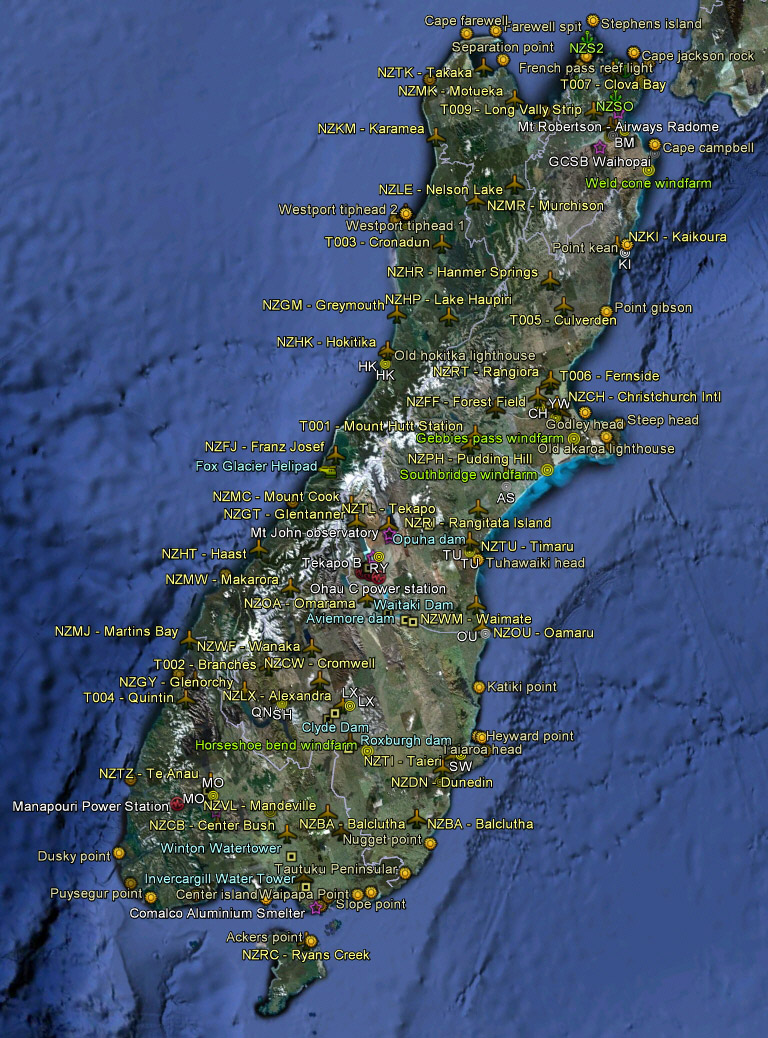
Just installed Orbx’s New Zealand South Island.  As expected, the product is a lot better than the default FSX scenery.    The quality of this new addon to me, however, is lower than the company’s North America products.   You will say “not bad” (edit: much better with the SP1) but won’t give it a “wow” when you first run it — die-hard Orbx fans may disagree.

Actually, the company’s recent products are giving me an impression that the overall quality of their addons are generally lowered.   I no longer buy their products without a second thought as I used to be in the last few years.

Anyway, here’s my modified version of the island’s airports and landmarks.   It is recommended to just COPY the URL and add it to the Network Link in Google Earth so that updates can be immediately reflected when available.

Continue reading

135: My Best fsx.CFG Update

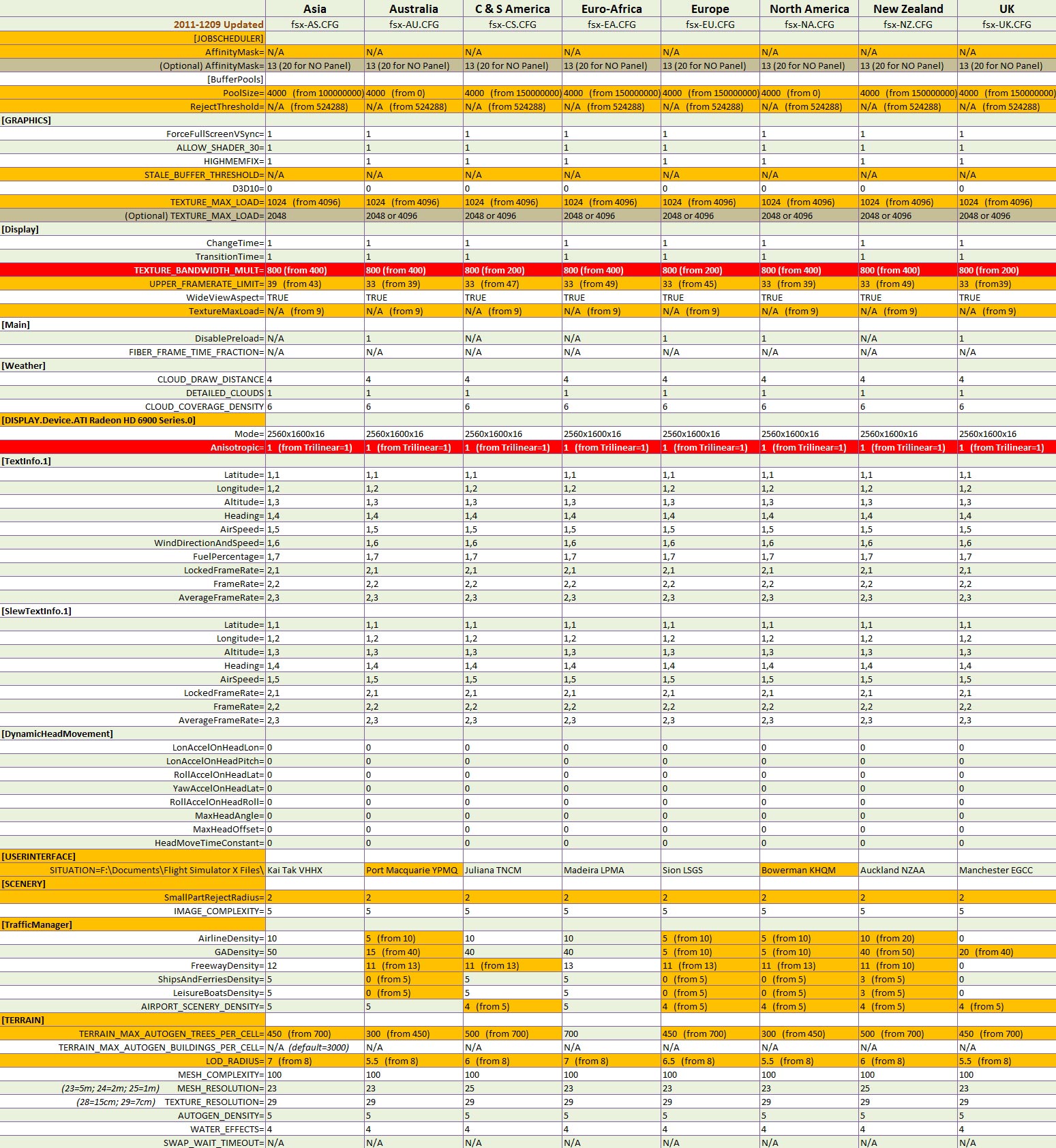
As earlier reported in Post 133, my system got some positive results from increasing the value of TEXTURE_BANDWIDTH_MULT to 800.

Updated on May-4, 2012: However, dropping down the value from 800 to 400 brings a result that the setting is more compatible to my recent hardware changes.   Therefore, the value of TEXTURE_BANDWIDTH_MULT is now set to 400.

Here is the fsx.CFG for all my flying zones — Note that TEXTURE_BANDWIDTH_MULT is 400, not 800.


Updated items are highlighted in red.

NOTE:

  • The Anisotropic=1 setting should be good for most people.
  • But many others may find the result from TEXTURE_BANDWIDTH_MULT=800 (which is good on my HD6970 card) differently with a different card.     Explore it yourself.
  • My previous fsx.CFG settings should still be good for general references.

134: Bye Bye Eclipse Yoke

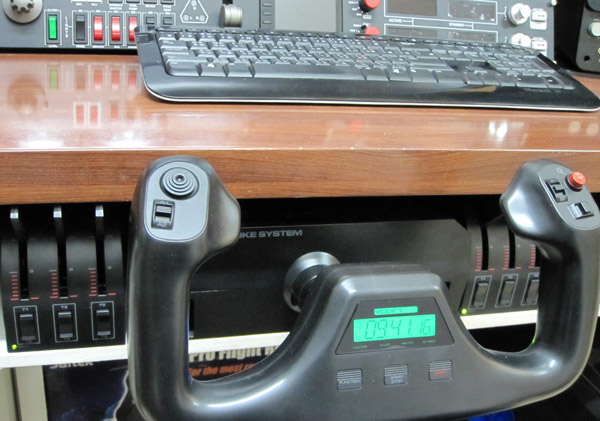
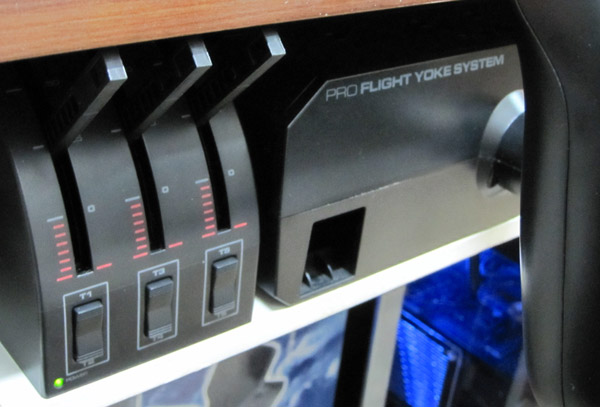
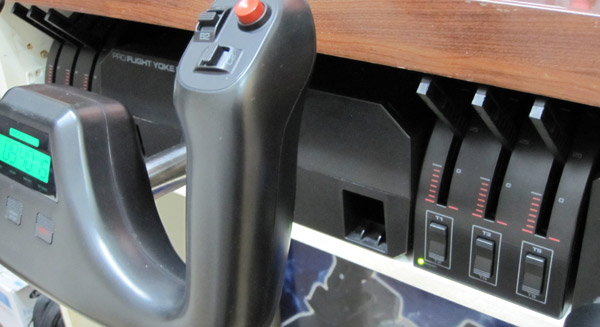
Even though I managed to mount the CH Eclipse Yoke to the panel compartment under my desk recently, I have no choice but to replace it back with the Saitek Pro Flight Yoke eventually.

Although I prefers the handy features coming with the Eclipse Yoke in a compact form factor, the quality of it, both built and performance, is really under par.   Furthermore, it was so annoying to encounter this and that issues and misalignment from time to time.    So I am back with the Saitek Yoke and accompany a Throttle Quadrant on both sides of it.

This slideshow requires JavaScript.

Continue reading

133: Texture_Bandwidth_Mult Revisited

Haven’t written a lot recently because I’ve been testing extensively with different tweaks on my system (mainly due to the addition of HD6970).    Also, some more hardware changes and replacements are going on.   Both consume a lot of time.

So far, there are two positive findings resulted from these tests, which help reduces the occasional stutters in my current setup described in Post 131.

1)  Under the Display Device section, use Anisotropic=1 rather than TriLinear=1, even though the Anisotropic Filtering is hardware controlled via the Catalyst Control Center.   Don’t ask me why.   It just performs better.

[DISPLAY.Device.AMD Radeon HD 6900 Series.0]
Mode=2560x1600x16
Anisotropic=1

2)  Mentioned in Post 27 that increasing the value of TEXTURE_BANDWIDTH_MULT under [Display] section could render a smoother display quality.   The result is more obvious from my current HD 6970 card than the retired HD 5870.    Three of my flying regions have been raised to 800 from 400.    Values higher than 800, however, cause negative impacts.

[Display]
TEXTURE_BANDWIDTH_MULT=800

Remaining regions are being tested, and will report the results later.

132: Zoom Functions Frequently Ignored

Zoom In and Zoom Out are two of the most frequently used functions in FSX.    In contrast, the Chase Distance Increase and Chase Distance Decrease features are seldom used relatively.

Background Zoom Level Remains Unchanged

Compared to Zoom In or  Zoom Out that enlarges or reduces all objects in the scenery, the Chase Distance Increase acts like pushing the aircraft away from you and the Chase Distance Decrease pulling the aircraft closer to you, both keeping the zoom level of the background scenery unchanged.

This could create quite a dramatic effect in a flightsim session.

By default, these two “zooms”  are assigned to key-combo [CTRL][-] and [CTRL][=] respectively.    They can easily be re-assigned to any buttons on external panels or yokes via Settings in FSX.

131: My Best FSX Setup (2011-1124)

Since my last update in August regarding my FSX setup, there were quite some changes to my system,

where I:

  • added two more FIPs

Continue reading

130: Radeon Settings for HD6970

In terms of FSX performance, my newly added ASUS HD 6970 Direct CU II graphic card is just slightly better than my previous ASUS Matrix HD 5870However, it does bring a better image quality and a much cooler and quiet environment to my system.  Moreover, the card allows connection up to six monitors, giving me flexibility when planning for future multi-monitor system upgrade.

The Radeon driver I am using is the latest 11.11 (updated on Nov-28).   Despite the new features come with the new driver, the Mipmap Detail Level option in 3D Application Settings was gone for the HD 6970.    Moreover, the Wide-tent and Narrow-tent filters of Anti-Aliasing were combined into one Edge-detected filter.

Continue reading

129: The Moon and The Stars

For anyone who likes to fly at twilight or in the night, the following two enhancement tools shouldn’t be missed.

The HD Moon Texture by Marco Fischbach can replace the default FSX moon texture (64×64) with one of its higher resolution moon texture sets — 2048×2048, 1024×1024 and 512×512.

My recommended choice is the 1024×1024 set, which is good enough to render a pretty and realistic lunar terrain effect, without sacrificing FSX performance.

The latest version 3 can be downloaded from FlightSim.com here.

Continue reading