150: A Quick Fix to TrackIR 5 Error

I’ve been using TrackIR with no problem until this morning.   When it was loaded, the screen popped up with a  message box as shown to the left.   After the OK button was pressed, another error showing up saying that TrackIR had stopped working due to some system issues.
Tried uninstalling and reinstalling the driver (either new or old), as well as turning off and on the computer, several times.  The error persisted.

A few people reported the same issue on NaturalPoints’ support Forum here.    Mike from the company replied that the issue was caused by an OpenGL conflict between Radeon latest driver (12.4 in my case) and TrackIR driver.    He said he could provide replacement files and instructions to solve the issue.  Continue reading

147: Wing Leveler Fix for FBW Aircrafts

A fan reported that my earlier Post 123 regarding Disable Unintended Auto-Pilot Wing Leveler doesn’t work on FSX’s default Airbus A321 and requested help for a fix.

The issue is caused by the activation of Fly-by-Wire (FBW) function on the aircraft and  followings are two solutions:

FIX 1:

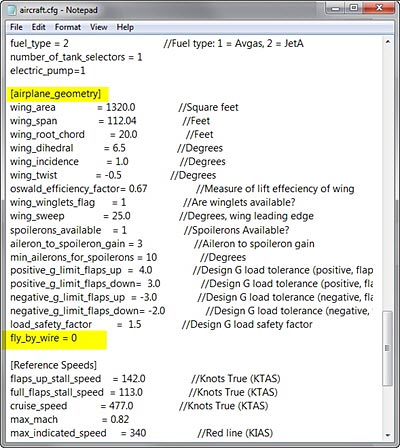
Open aircraft.cfg of A321 and modify the parameter of  fly_by_wire from 1 to 0 under the [airplane_geometry] section

fly_by_wire=0

This will disable the fly-by-wire function simulated on the aircraft and allows the Auto-Pilot Wing Leveler (Ctrl-V) to work.

FIX 2:

Continue reading

144: Remove Burn-In Marks on FIPs

During the installation of Saitek’s Flight Instrument Panels (FIPs), a few images of the company’s other products will also be copied to the device’s driver directory.    These product shots, since they are useless, can be  removed or replaced easily (see my Post 28: Flight Instrument Panel Tweak – Part 1).   However, by doing so, the FIP will show the serial number screen all the time when FSX is not engaged.

Saitek’s official states in the company’s product forum that because the intensity of the LCD is so mild that the screen of FIP won’t get hurt even it is left on for a long period of time.

Above situation stayed true for more than two years for my first three FIPs until I bought two more FIPs for my system recently. Continue reading

125: Aircraft Door Fixes

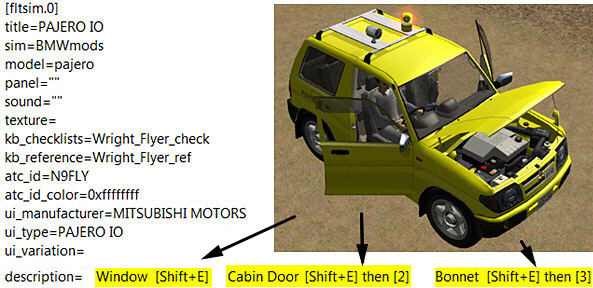
The Mitsubishi Pajero by Mitsuya Hamaguchi is supposed to have its Door Windows, Cabin Doors and Engine Hood opened (or closed) when [SHIFT+E][SHIFT+E] then [2], and [SHIFT+E] then [3] are pressed respectively.

However, due to a mismatch error in its aircraft.cfg file, its hood (bonnet) cannot be opened when [SHFT+E] then [3] is pressed.

Continue reading

118: Loading FIPs in Desired Order

Received quite some inquires about loading specific gauges onto multiple FIPs (Flight Instrument Panels) in desired order.

Here’s how I do it:

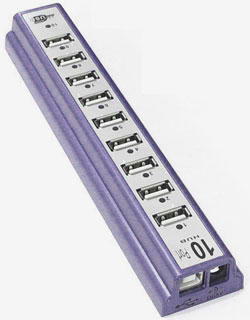
  • Use a powered USB hub to connect all FIPs to the computer
  • Plug the first FIP (the one to display the first gauge) to the last numbered port on the hub
  • Then the second FIP to the second last port;  the third to the third last port, and so on.

The FIPs are required to plug in this manner because the USB hub always starts the FIPs in reverse order from the last numbered port to the first numbered port.

Continue reading

113: A Quick Fix to SHADE Darkness

As mentioned in Post 107, the one thing I particularly dislike SHADE for FSX is that all its available Presets will significantly dim the brightness of all scenes in FSX, especially in the early morning and late afternoon.

Although users can modify the Preset values via the program’s graphical user interface (Shade_gui.exe), the effects of changes are not intuitive and the results are to some extent depending on a time-consuming trial-and-error process.

Indeed, there’s not much one can do to speed up the process of getting an ideal result from color and shadow changes.   But for the “too dark” issue, followings are what I did for a quick fix, from which I further finetune the color and shadow of shade for my own preferences.

Continue reading

58: Rebuild FSX Shader Cache

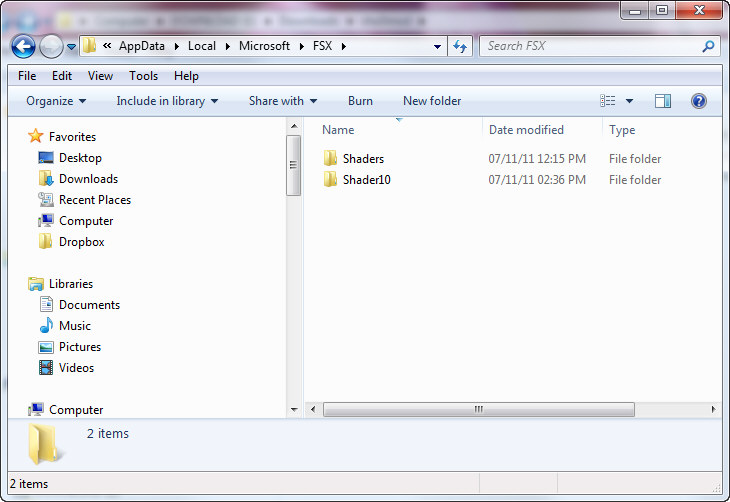
When FSX was run the first time, a cache was also created under the C:\Users\<user name>\AppData\Local\Microsoft\FSX folder.   It contains a sub-folder called Shaders (some systems may have an additional folder called Shader10) in which instructions and codes that are frequently accessed by FSX are stored.  Every time FSX is run, contents of the cache will be optimized further to improve overall system performance.

C:\Users\Tom\AppData\Local\Microsoft\FSX

However, this cache is prone to be messed up when settings of fsx.CFG are changed or system is toggled between DX9 and DX10, etc.

Continue reading

32: HK International Airport Bug Fix

The HK International Airport VHHH from Imagine Simulation is not a bad supplement to FlyTampa’s HK Kai Tak Airport VHHX.

However, the product is a bit overdone because it mistakenly replaces FSX’s default buildings from the adjacent area, which in fact is more true to the reality. Continue reading

08: Fail to Add Scenery

The Add Area function under Scenery Library somehow fails to install new sceneries under Windows 7.   The simple solution is to edit the Scenery.CFG file manually in order to place new addons to the Scenery Library as described below:

1. Locate Scenery.CFG file from  C:\ProgramData\Microsoft\FSX\
2. Make a backup of the Scenery.CFG file before making any changes.
3. Open the file with Notepad and go to the end of it.
4. Copy the last scenery section and Paste to the end.
5. Add 1 to the number of both Area and Layer.
6. Change Title as required
Continue reading