
There are occasions when we may need to perform a clean reinstallation of Windows or rebuild our flight simulation systems. However, manually reinstalling all drivers afterward is often one of the most tedious and time-consuming tasks.
Here’s an effective, time-saving solution to back up and restore all drivers for a smooth transition.
–
BACKUP
1)
Create a new folder called “SystemDrivers” (or any name you prefer) on a drive other than your main C:\ drive. For example, I created mine on the D:\ drive as my backup destination.
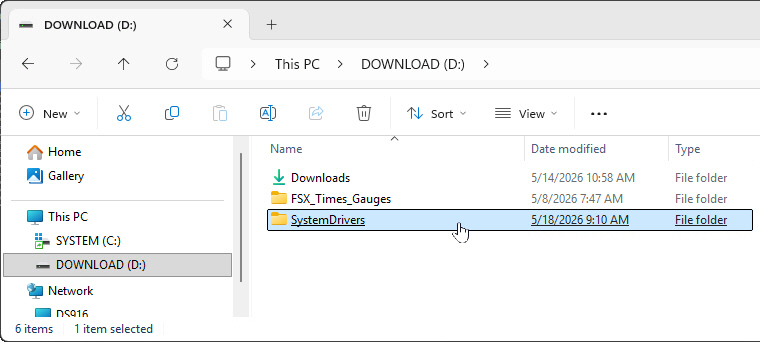
- Tip: Ensure your target drive has enough storage space. My driver backup files total over 20GB, so a drive with 32GB or more of free space is highly recommended.
- Pro-Tip: While you can back up directly to a USB drive, writing to an internal HDD or SSD is much faster. You can copy the folder to a USB drive for safekeeping once the backup is complete. If your backup drive will not be affected during reinstallation, copying the backup folder to a USB drive is optional, though still recommended for safety.
2)
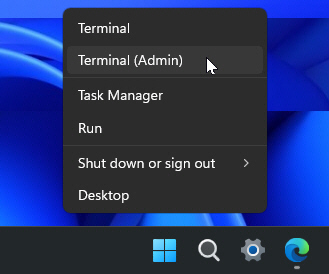
Press Windows Key + X or right-click the Start menu button, and then select Terminal (Admin) or Windows PowerShell (Admin) from the menu.
3)
Type in the commands below and replace the path inside the quotation marks with your actual folder location. Ensure to include the exact spaces and punctuation marks in the command line as shown in the figures.
dism /online /export-driver /destination:”D:\SystemDrivers”
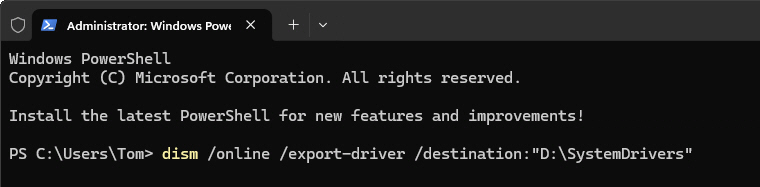
Command Explanation:
- dism: (Deployment Image Servicing and Management): The Windows command-line tool used to service, modify, and repair system.
- /online: Instructs the tool to target the currently running Windows system.
- /export-driver: Directs Windows to extract and export all installed drivers.
- /destination: Specifies the exact target path where the drivers will be saved (e.g., D:\SystemDrivers).
4)
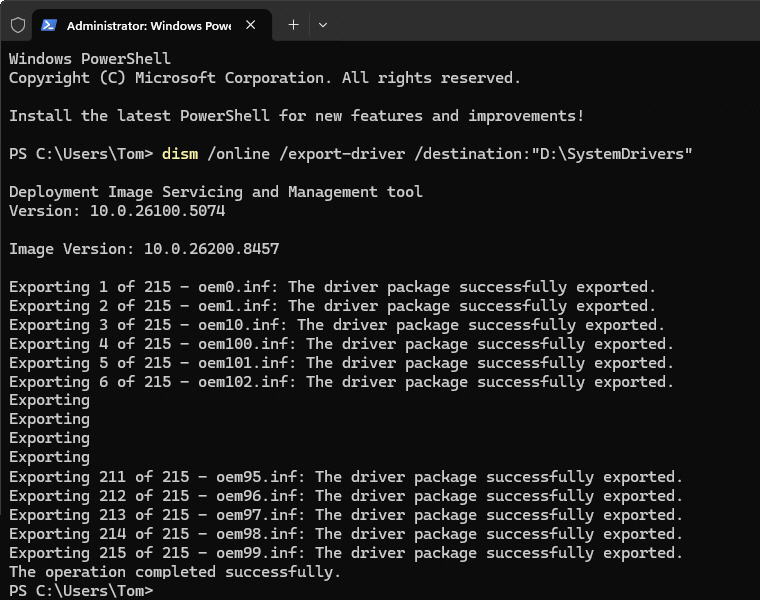
Press Enter and the driver backup process will begin.
5)
Once the process finishes successfully, you can close the Terminal or PowerShell window. All your drivers are now safely exported into your designated folder.
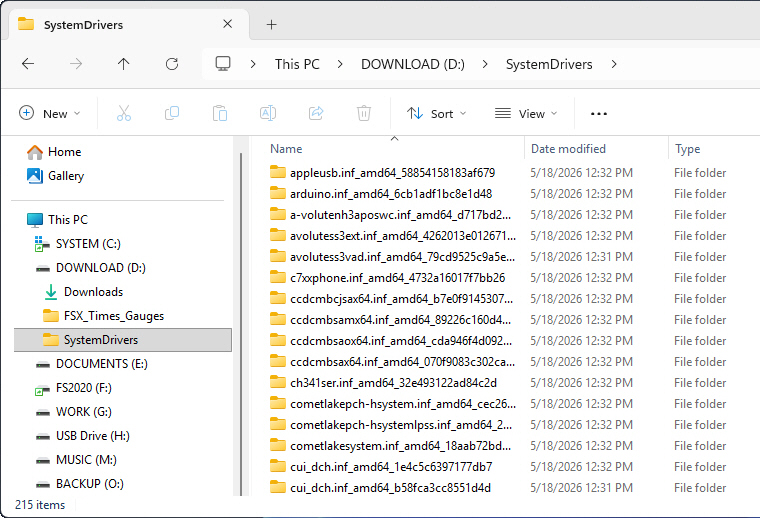
Note: If necessary, you can copy the “SystemDrivers” folder to a USB drive for future reinstallations or safekeeping.
–
–
To be continued …
 FS Times